
Upload, Download, Backup
How to Bulk Download Images?
The Download Media lets you package a set of product images/videos, collection cover images, blog article images, or content file images into a downloadable ZIP file. This task does not affect the images on your store in any way.
Steps to Download Media
- Go to the Download Media section from the left side bar or the app’s dashboard.
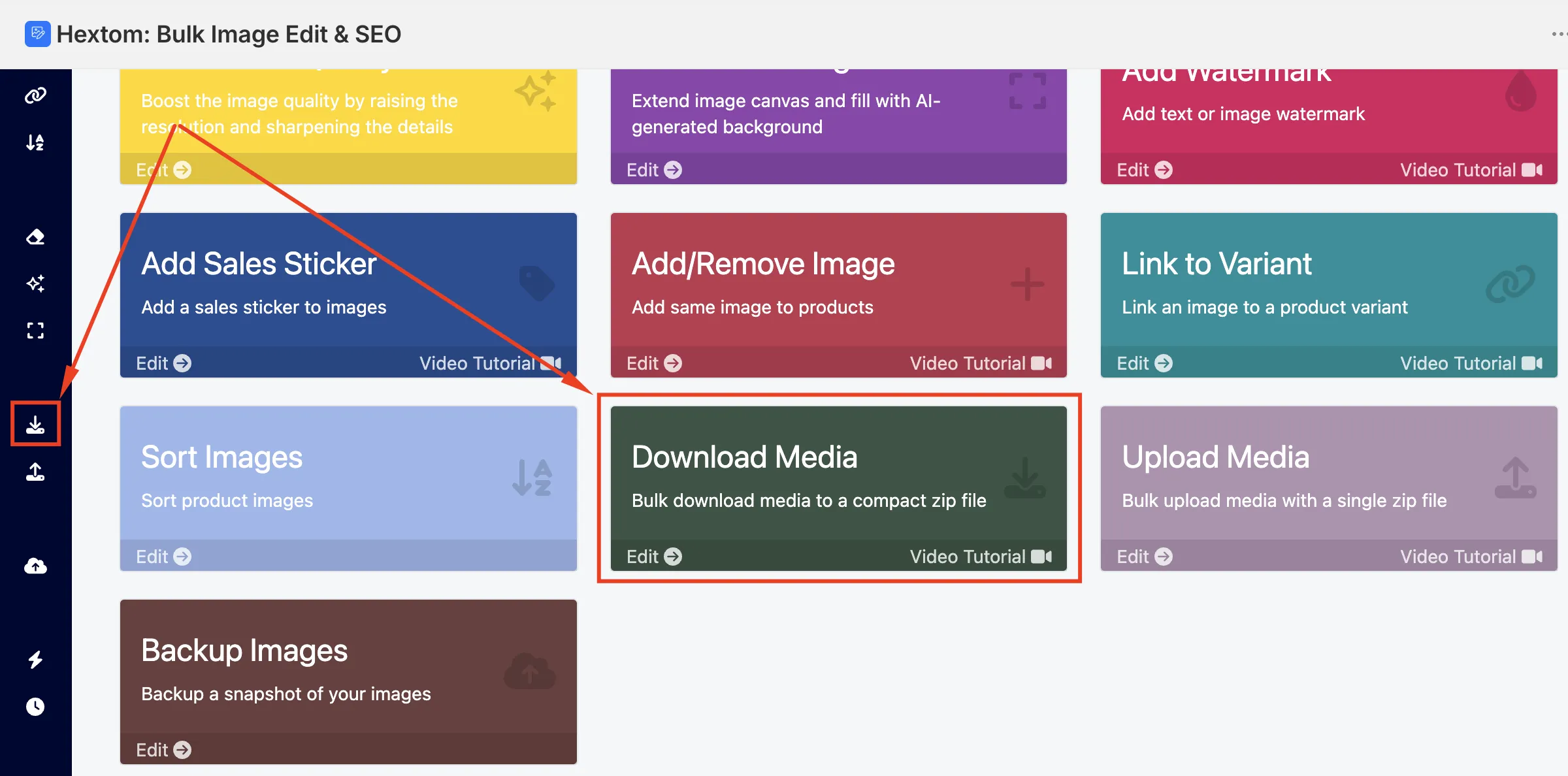
- Select which type of images you want to download: Product Images/Videos, Collection Cover, Blog Article, or Content File Images.

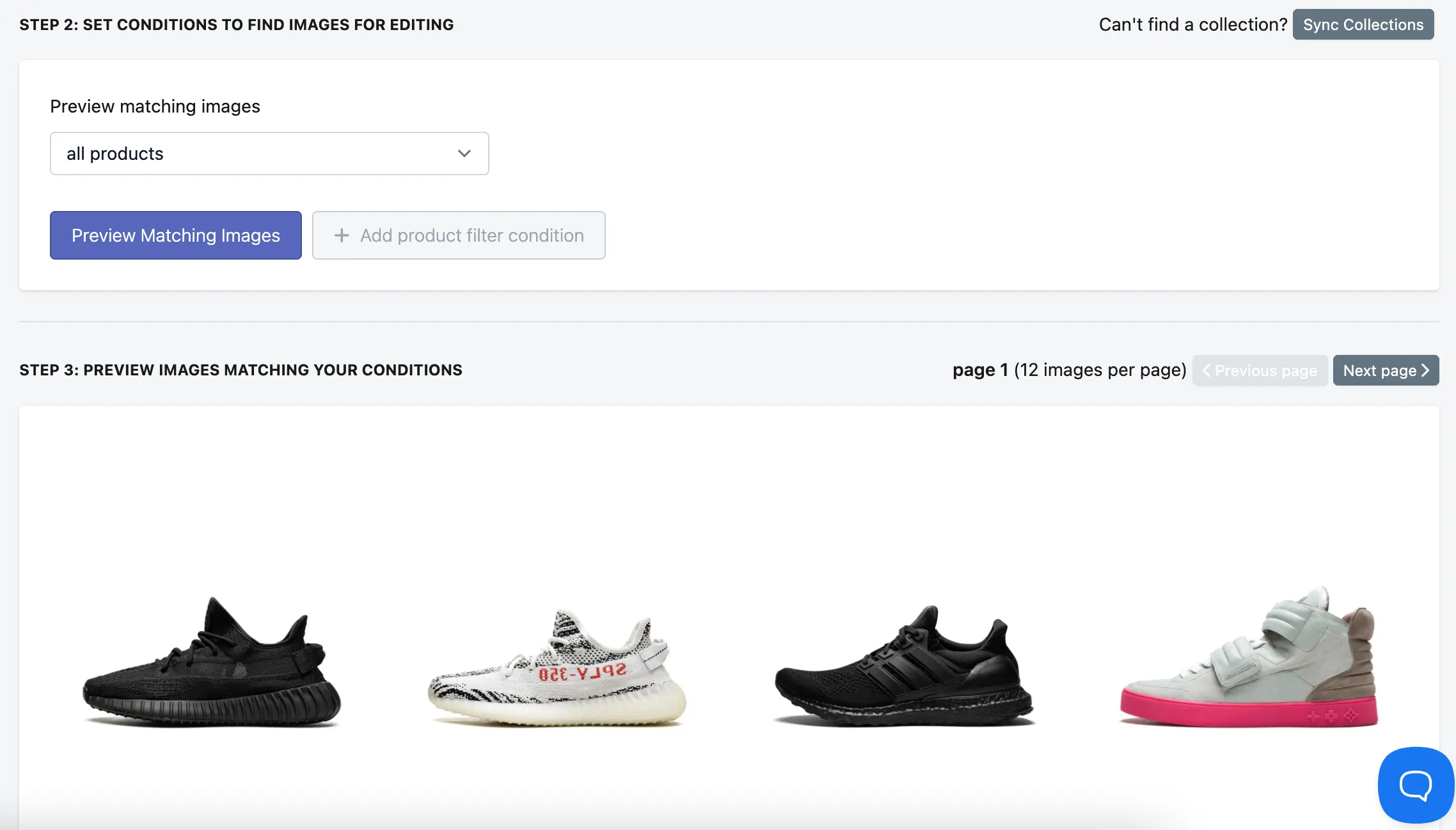
- Use the filter dropdown to define which images you want to download. For example, you can filter by specific products or select All Products to download from your product catalog.
Click Preview Matching Images to view which images match your filters before proceeding.
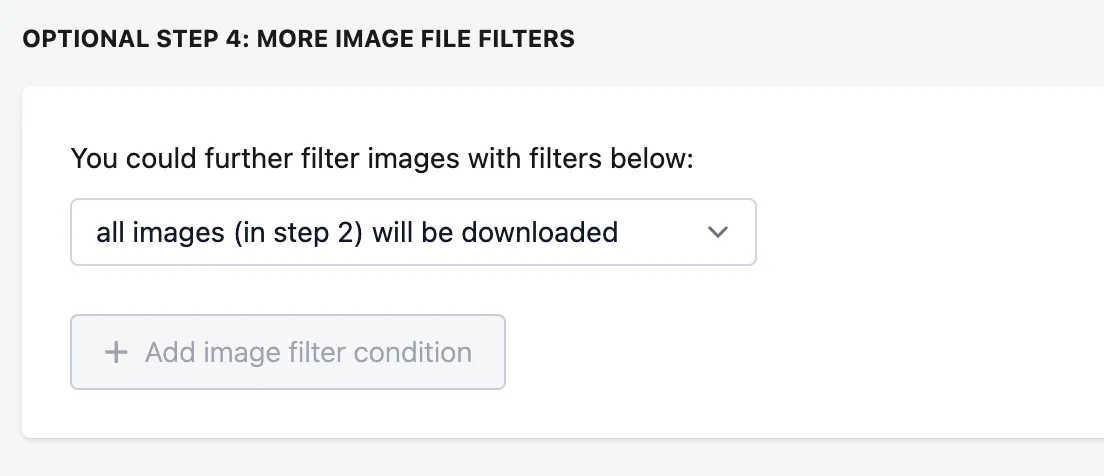
- On the Optional Step, you can further narrow down the images using additional image file filters, such as filtering by image position, file size, background color, etc.
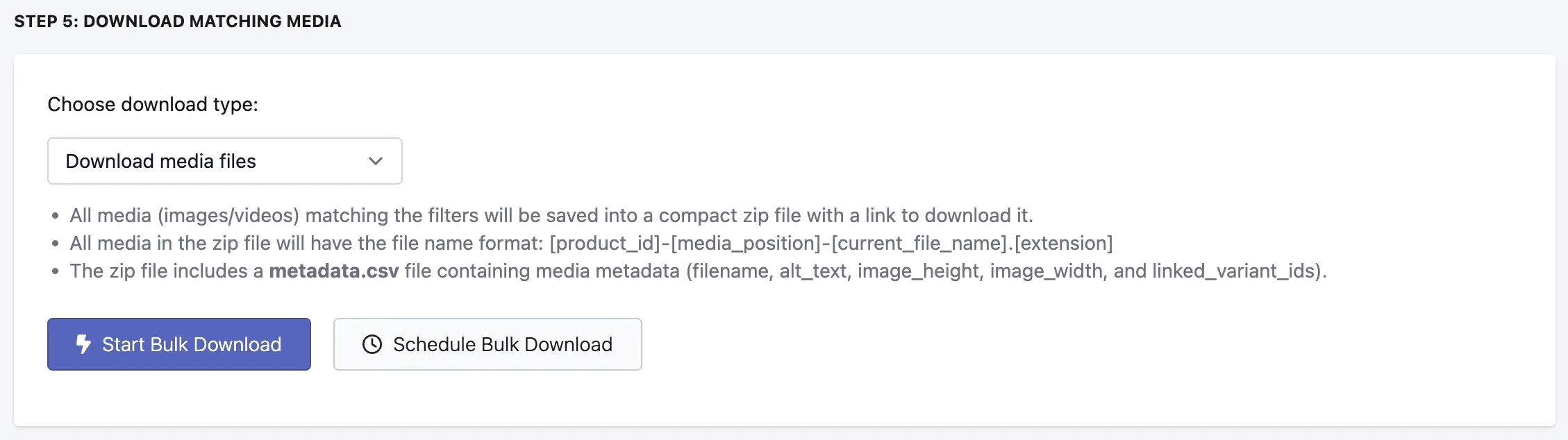
- On the last step, select your preferred download type from the dropdown:
Option 1: Download Media Files
This will download all matching images/videos packaged into a ZIP file. The ZIP file includes:
• All matching media files
• A metadata.csv file containing: filename, alt text, image height, image width, and linked variant IDs
File names in the ZIP follow this format: [product_id]-[media_position]-[current_file_name].[extension]
Option 2: Download Metadata Only (CSV)
This will download only a metadata.csv file and no media files are included.
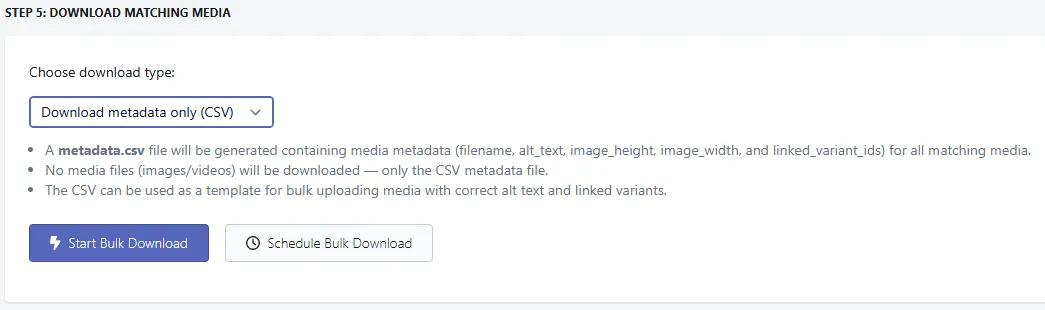
This CSV contains the following fields for all matching media: filename, alt text, image height, image width, and linked variant IDs.
This option is useful for quickly reviewing your image metadata, or as a template for bulk uploading media with correct alt text and linked variants using our Upload Media feature. 6. Once you’ve selected your download type, click “Start Bulk Download” to begin, or “Schedule Bulk Download” to set up a recurring scheduled task.
When the task is complete, click the Download Zip File link when you view the download task in the app to save the ZIP file to your device.

Frequently Asked Questions
Why do the images in the ZIP file have different names than on my store?
When images are added to the ZIP file, they are renamed to help identify where they came from. The original images on your store are not renamed. Files are renamed using the following format:
Image Type File Name Format in ZIP
Product [product_id]-[media_position]-[file_name].[extension]
Collection [collection_id]-[file_name].[extension]
Blog Article [article_id]-[file_name].[extension]
Content File [file_name].[extension]
How many images can I download at once?
The number of images you can download depends on your current plan’s “Monthly Image Edits” limit. This is your total monthly limit, not your remaining credits at any given time. Downloading images does not consume your monthly editing credits.
If your filters match more images than your monthly limit, the task will only include images up to your limit. For example, if your plan allows 1,000 monthly image edits and your filters match 1,500 images, the first 1,000 images will be added to the ZIP file.
Why is there a metadata.csv file in my ZIP?
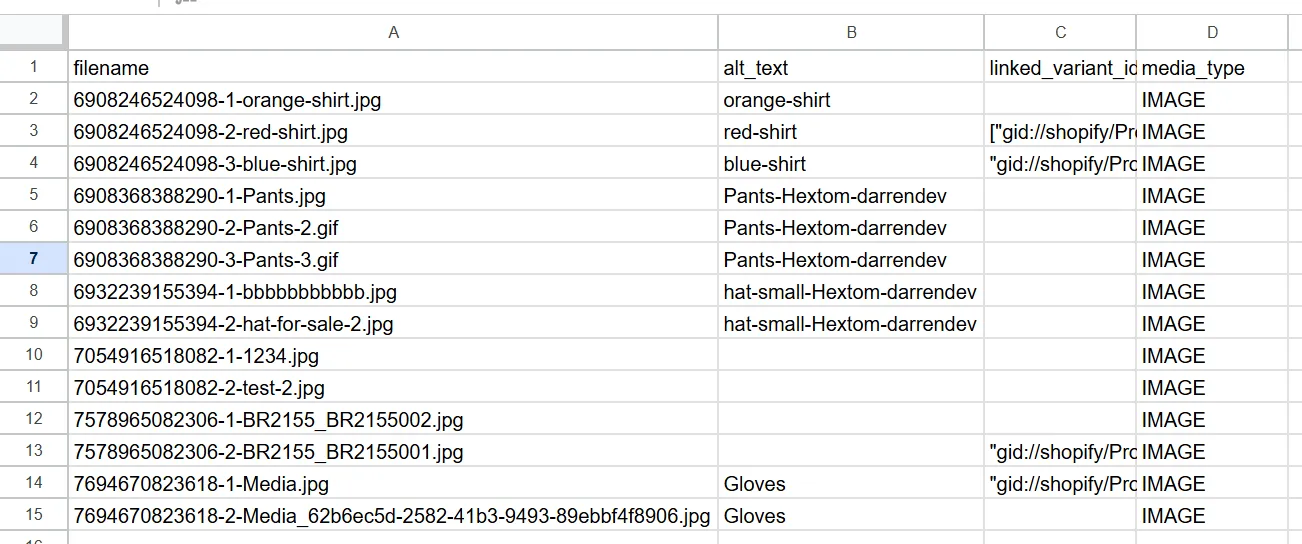
Every ZIP download includes a metadata.csv file containing key information about each image: filename, alt text, image dimensions, linked variant IDs, and media type. You can use this file to quickly review your image metadata or as a template for bulk updating image metadata via our Upload Media feature.
Please use the video below as a step-by-step guide to download media in bulk in the app.
Need Assistance?
If you have concerns or need further help, feel free to email us at help@hextom.com!