
FAQs
How Do I Display Multiple Bars?
Quick Announcement Bar can only display one bar per page. The benefit of having multiple active bars is that you can target them to different pages. However, only one bar can be loaded on a single page at a time. If you want two bars to display together, you will need to use a different workflow.
In this case, you can use the Stackable Messages feature to build multiple bars within one Quick Announcement bar.
Like so:

Follow these steps to create your bar using Stackable Messages:
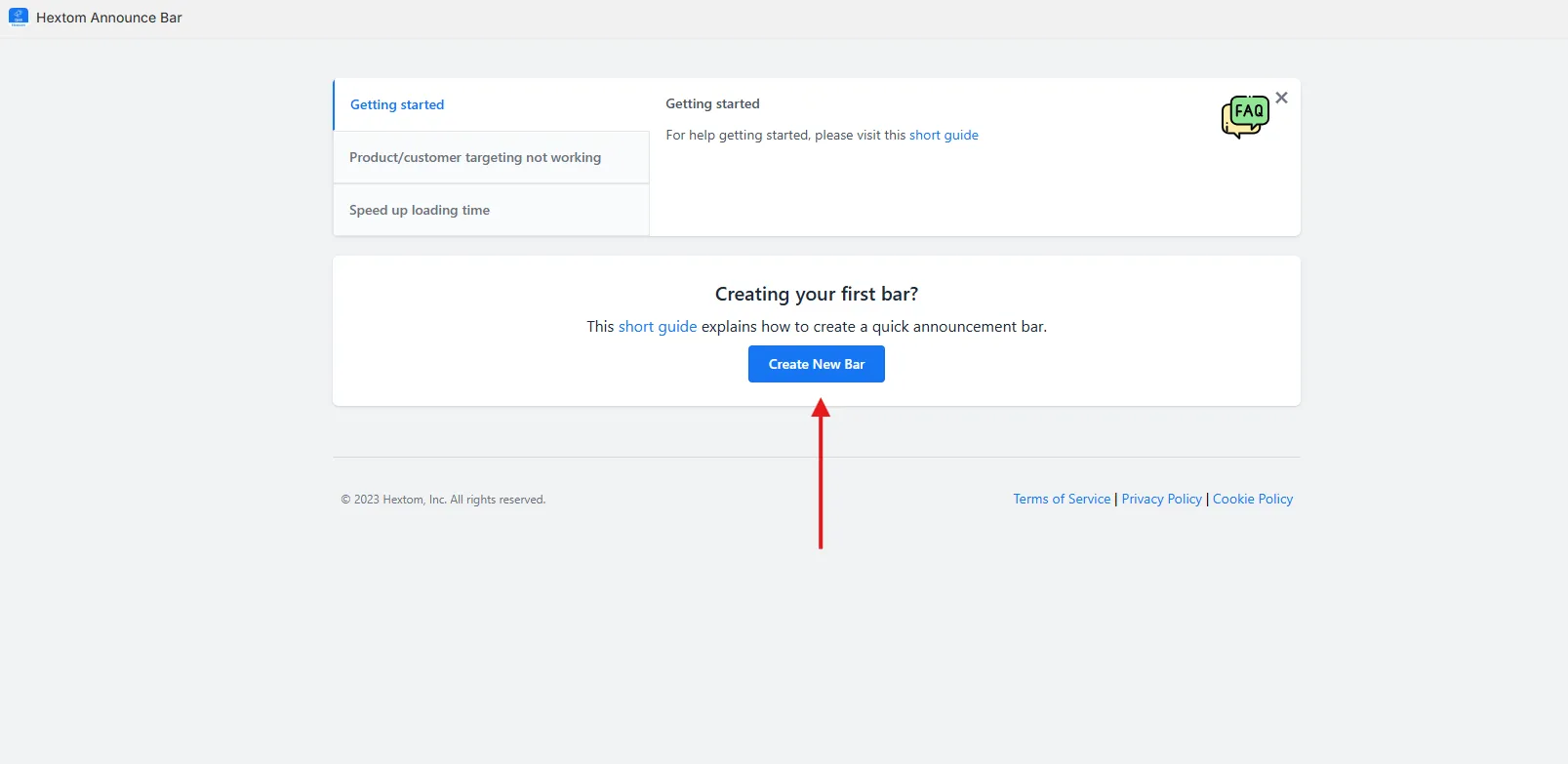
- Open the Quick Announcement Bar app and click **Create a bar **to begin.
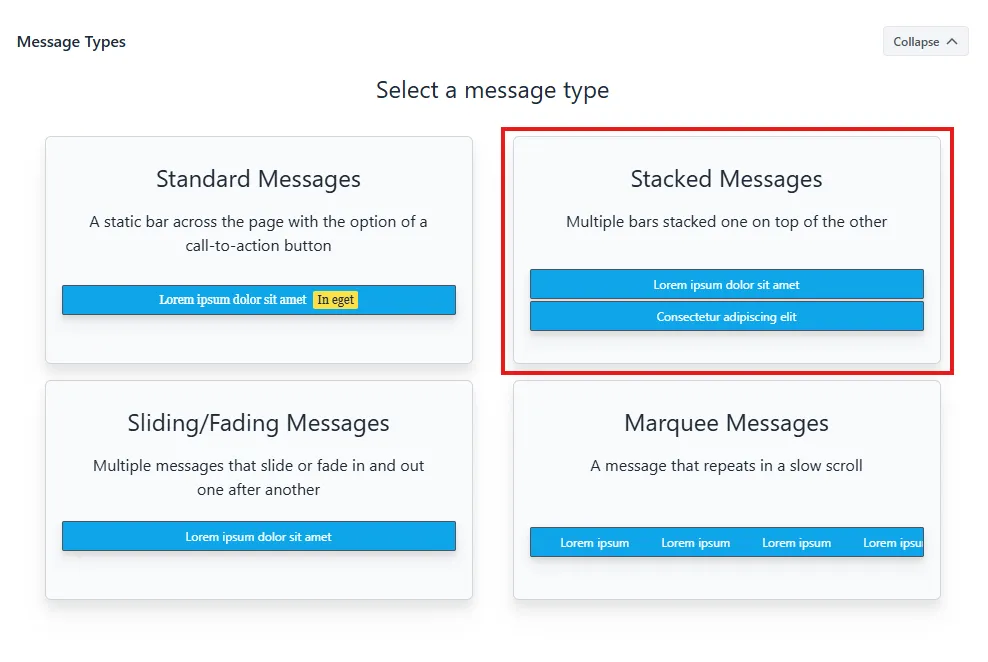
- Next, in the message types, select Stacked Message.
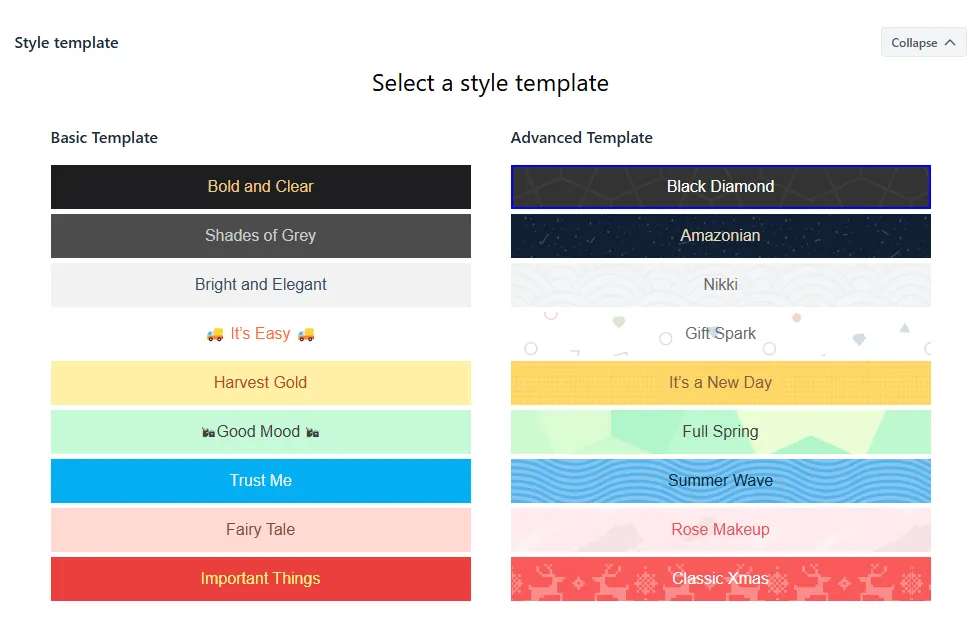
- Choose your preferred style template for the bar.
- In the content and style section, configure the message and styling for each bar. To add more bars, click** Add a message** button.
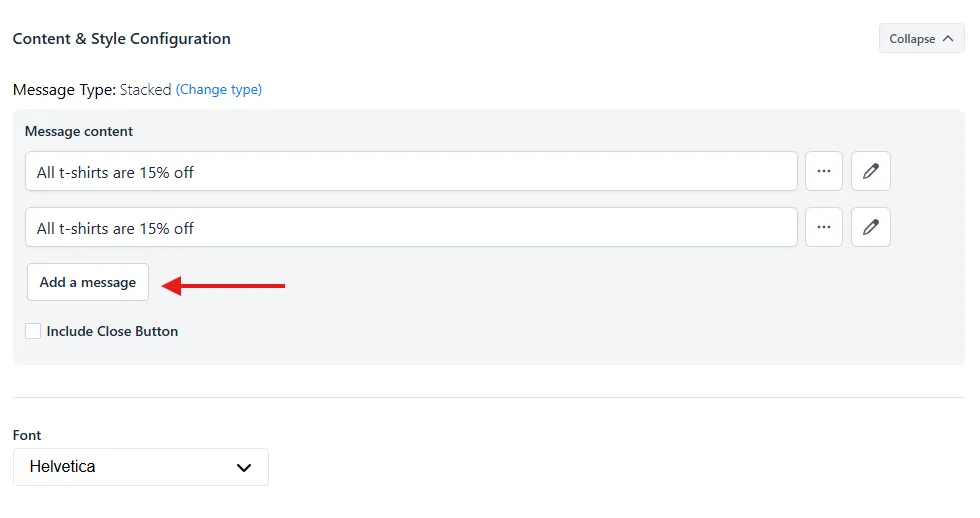
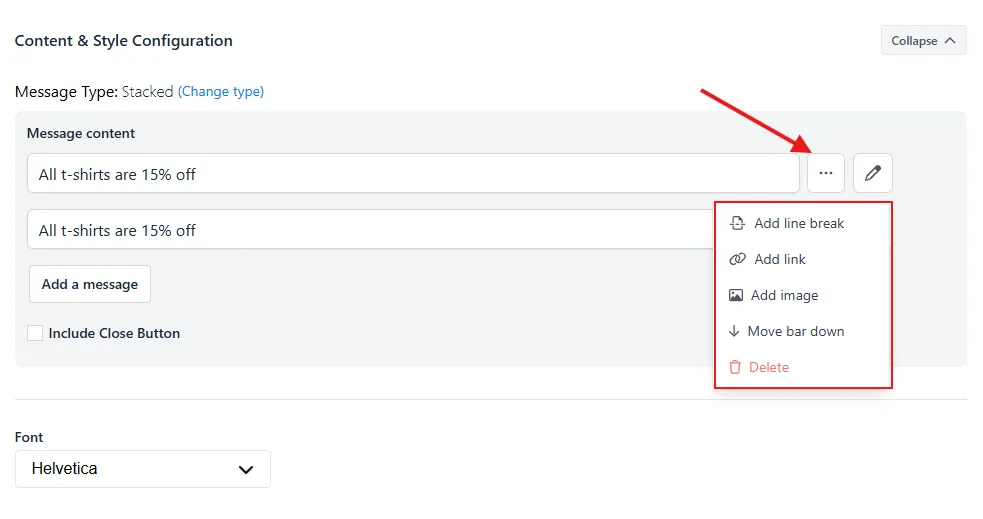
- To add a line break, link, image, move, or delete bar, click the three dots next to the message field.
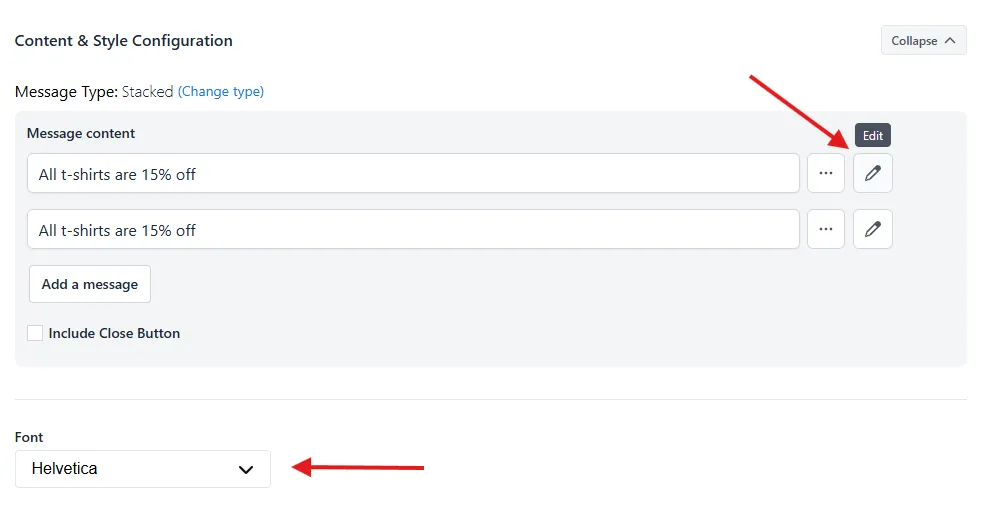
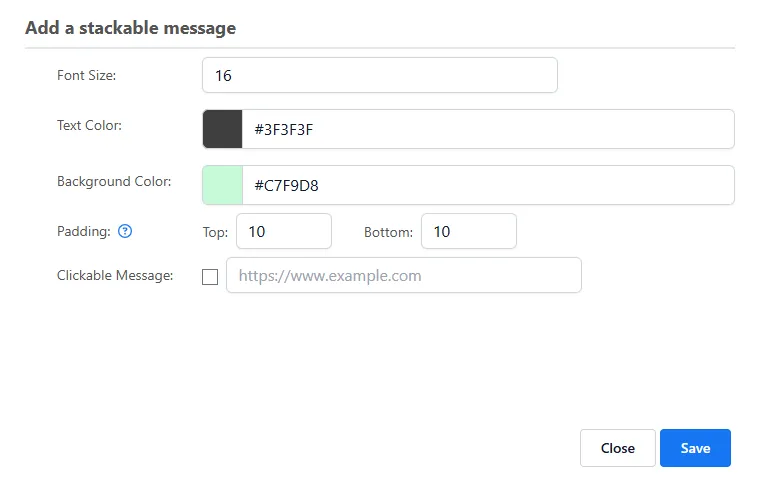
- You can set your preferred font style at the bottom of the section and it will apply to all messages. You can also click the **Edit **button next to each bar to customize the font size, text color, background color, padding, or enable a clickable message.
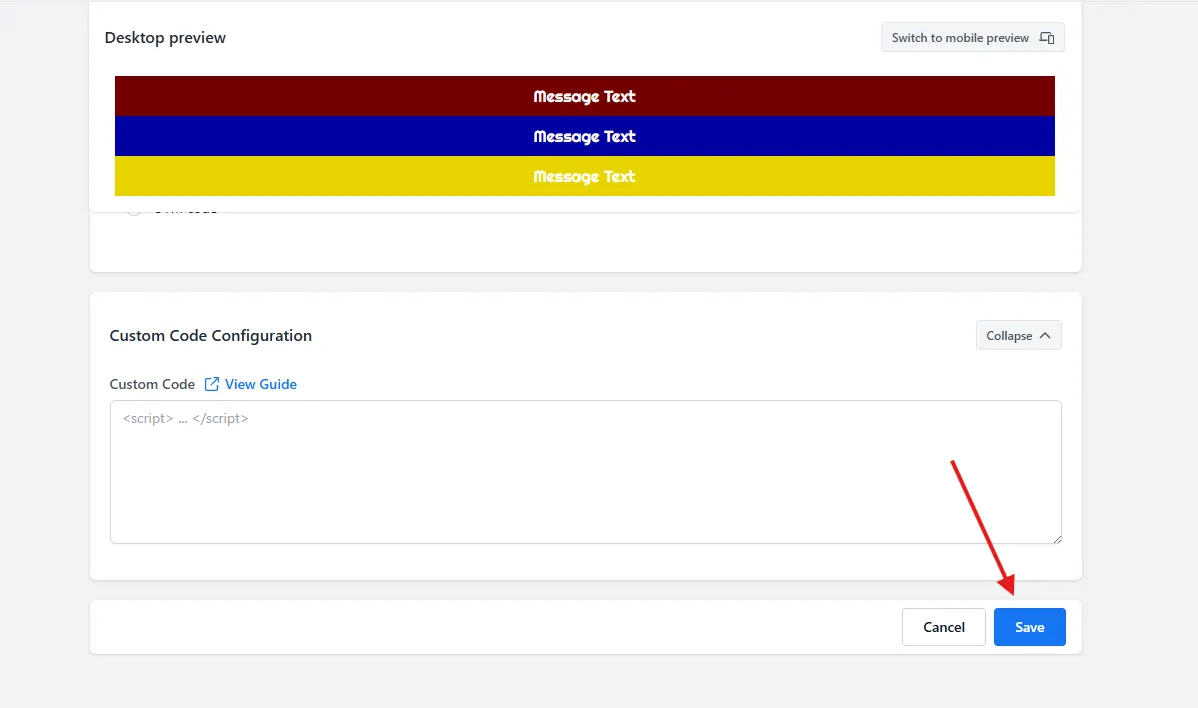
- Then, continue with the remaining settings as needed. After that, click **Save **at the bottom right to save the configuration.
If you have any questions or concerns, please reach us out at help@hextom.com
Was this article helpful?
Your feedback helps us improve our docs.
Thanks for the feedback!