
FAQs
How to Enable a Sticky Announcement Bar
Quick Announcement Bar supports a sticky mode that keeps your announcement bar visible while customers scroll through your store. This is ideal for promotions, shipping notices, or any important message you want shoppers to see at all times.
How to Enable the Sticky Bar
1. Open your bar settings
In the app, click Edit on the bar you want to make sticky.
2. Go to Display Configuration
Scroll down to the Display Configuration section and look for the Select a display position options.
3. Choose a sticky position
Select any position that includes “always visible while scrolling”:
- → Top bar pushes down the rest of the page (always visible while scrolling)
- → Top bar overlaps top of the page (always visible while scrolling)
- → Bottom bar overlaps bottom of the page (always visible while scrolling)
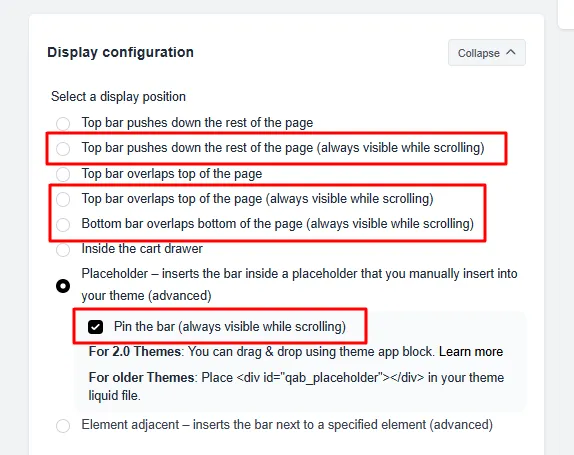
If you are using the Placeholder position, check the Pin the bar (always visible while scrolling) checkbox that appears below the Placeholder option to make it sticky. Not sure how to set up the Placeholder position? Learn how to place the bar visually in theme customization.
4. Save your bar
Click Save and visit your store — your bar will now stay pinned as visitors scroll through the page.
If you have any questions, feel free to reach out to us at help@hextom.com