
Setup & Features
How to configure stock countdown in Upsell Sales Boost
The **Stock Inventory Number **widget is perfect to display the product or variants live inventory quantity.
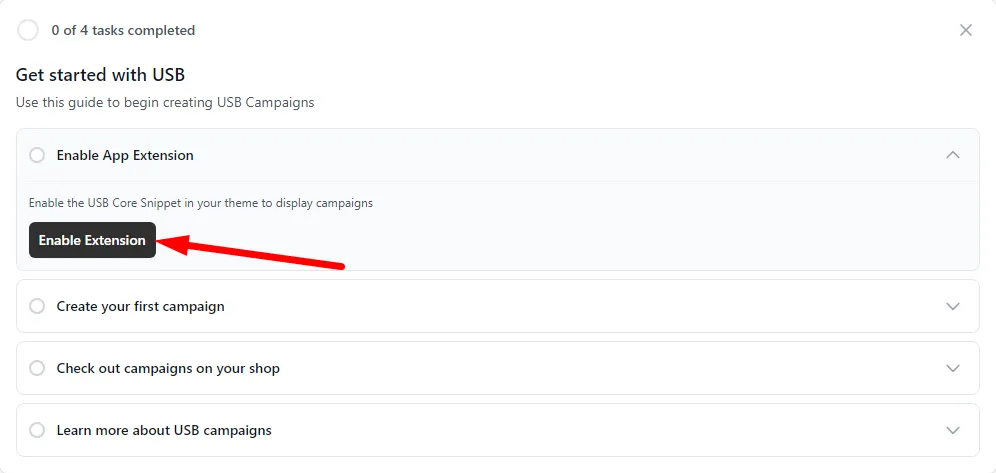
To start, let’s enable the “USB Core Snippet” for product Inventory tracking.
Click the **“Click here” button. **This will redirect to the Shopify Theme Editor.
Once the editor opens, the USB Core Snippet is enabled for you. A notification around the bottom middle part will show, and you can save the changes.
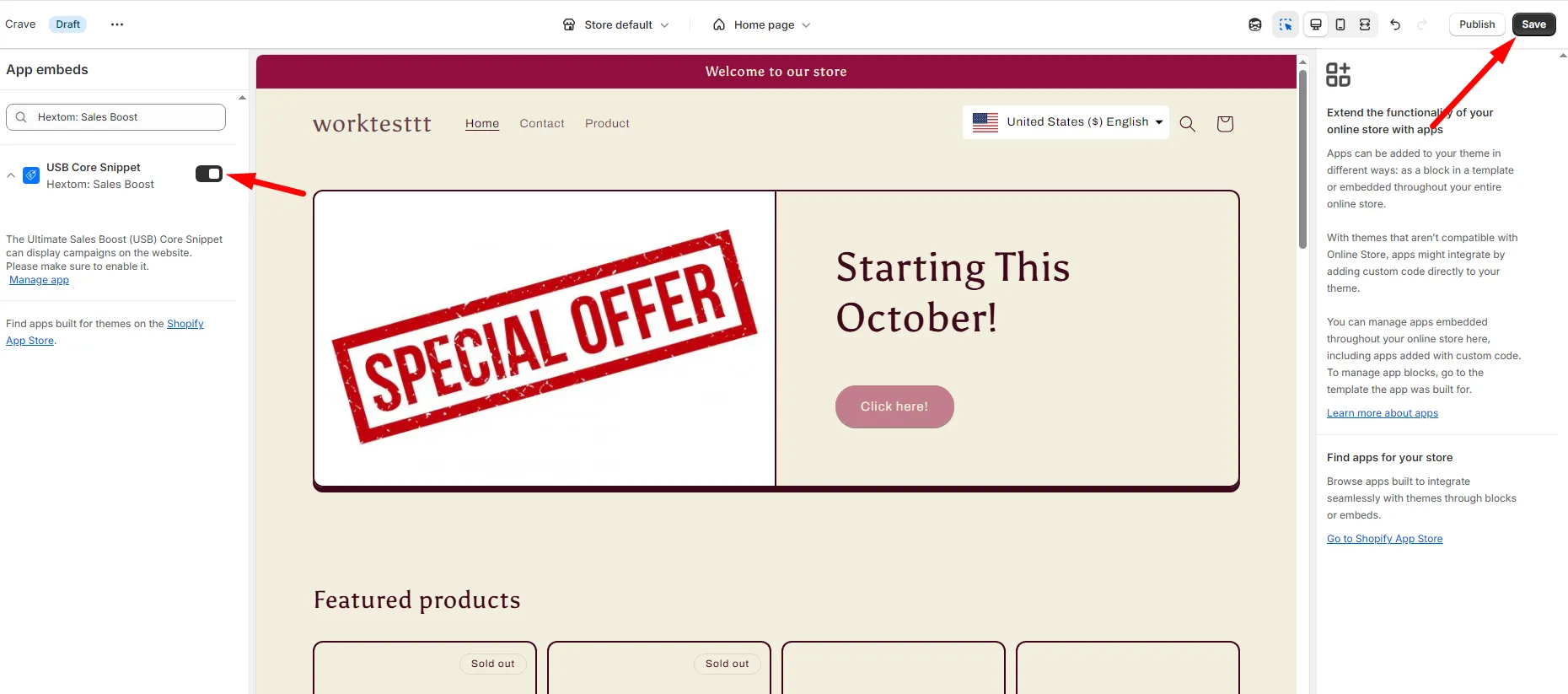
Enabling the Stock Inventory Widget
Next we can enable the Stock Inventory Number widget!
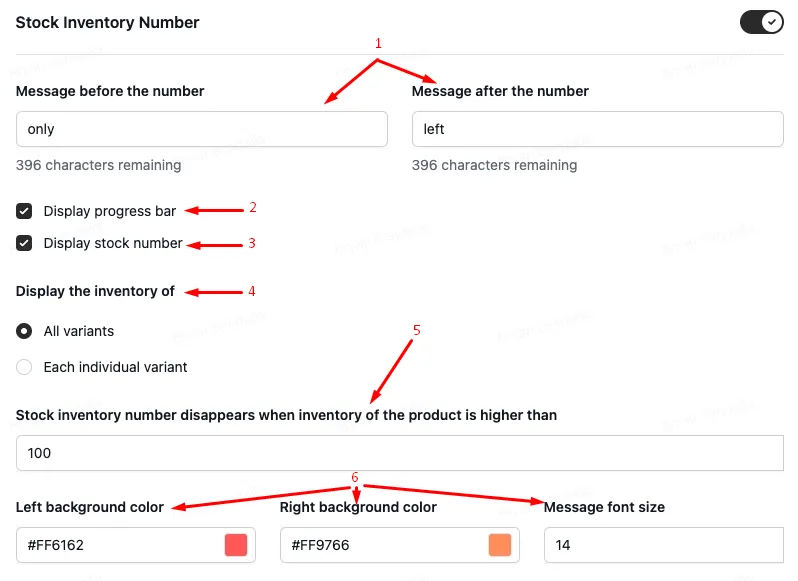
Here we have the options to:
-
Customize the text before and after the Stock Number
-
Enable / Disable the animated progress bar
-
Enable / Disable the stock number
-
Display each variants stock quantity individually, or all variants stock quantities combined
-
Display the stock widget if the products quantity is Less Than 100
-
Customize progress bar colors and font size.
Here is how it looks like in the store.
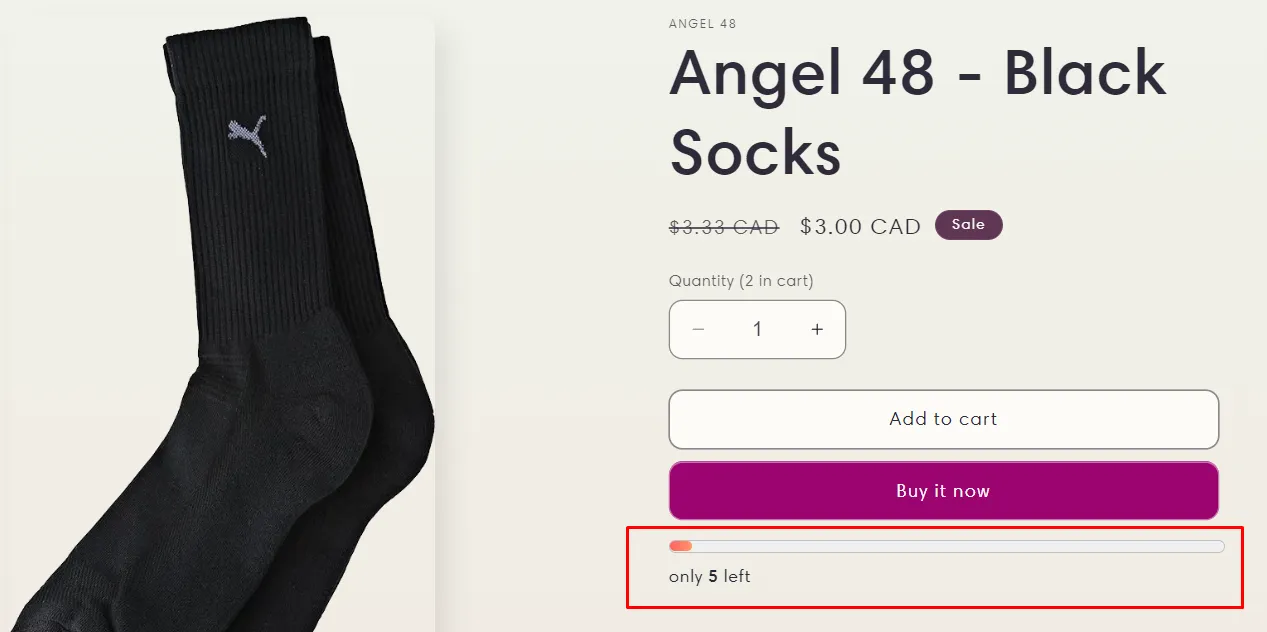
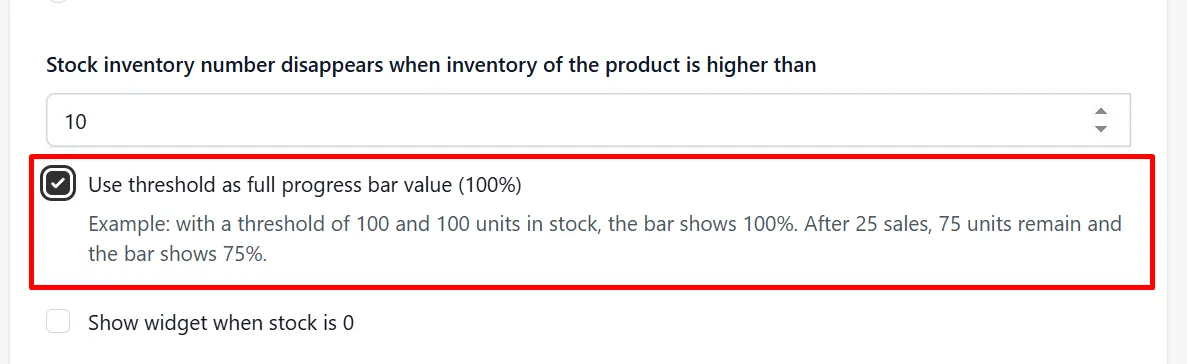
You can also set the progress bar to use the threshold as the full progress bar value, and the progress bar will fill up based on your current inventory.
For example, if the threshold is set to 100, the progress bar will show as 1/2 full for a product with 50 inventory, and 1/4 full for a product with 25 inventory.
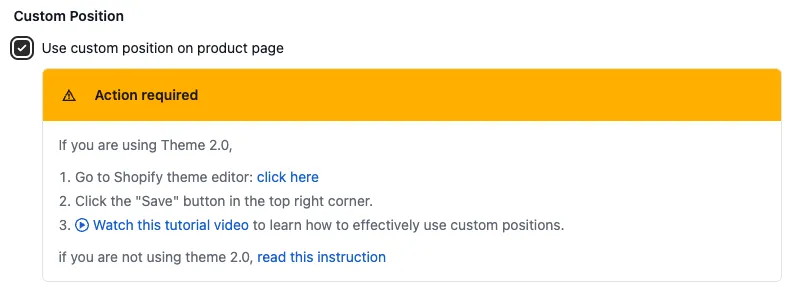
Custom Position is available for this widget.
Please see the following Tutorial for reference.
Is the Stock Inventory Number widget not displaying?
Please see the following Tutorial for assistance.
If you have any concerns or questions about custom placement, please reach out to us here at help@hextom.com