Features
Timer Styles
Countdown Timer Bar has 4 styles of timers to choose from, as well as the option to not show any timer.
This timer simulates an analog clock with number cards flipping down.

Labels
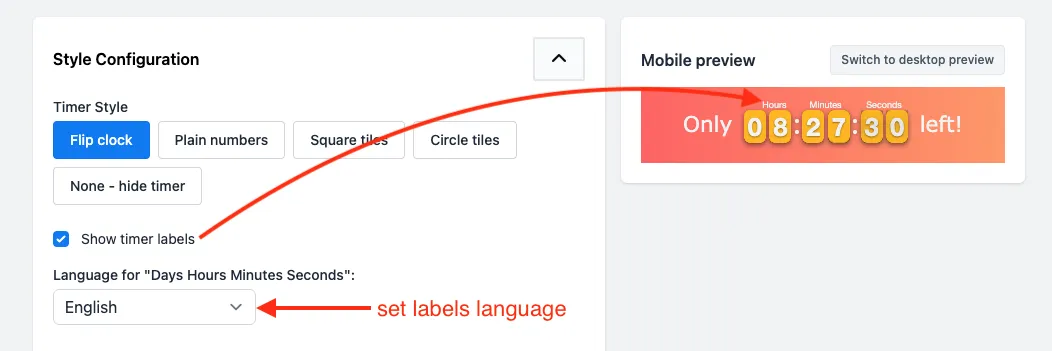
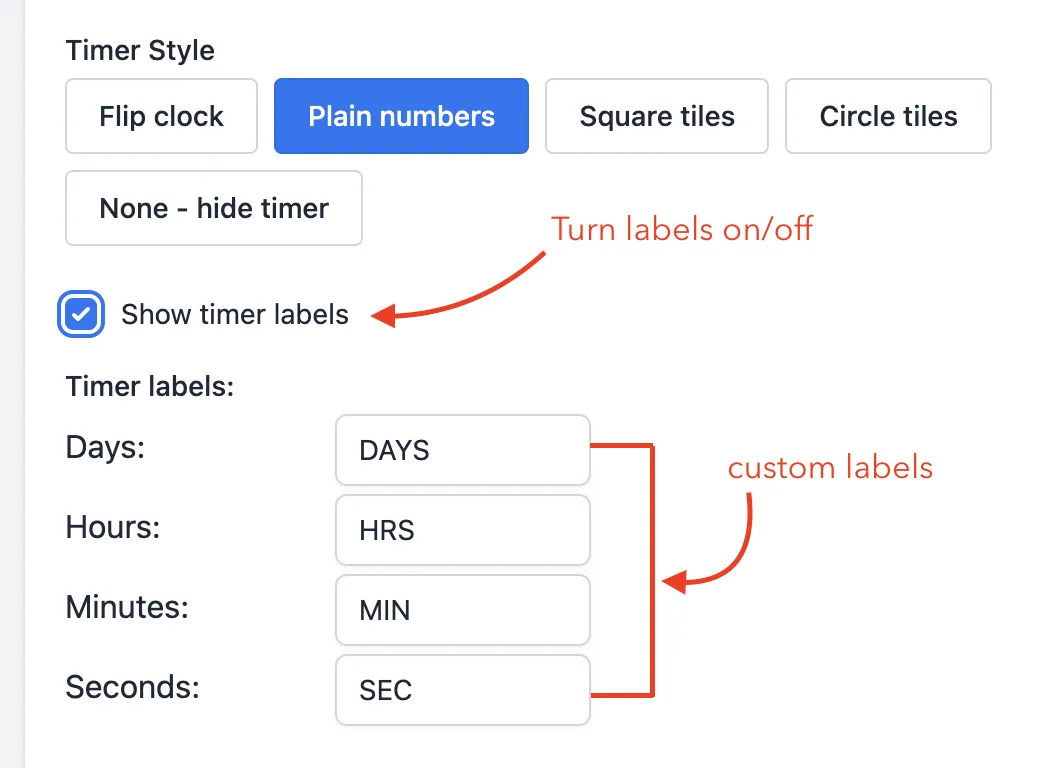
You can choose to display or omit the timer labels. You can also select the language for the labels.
Colors
You can set the color of the timer background as well as the color of the number.
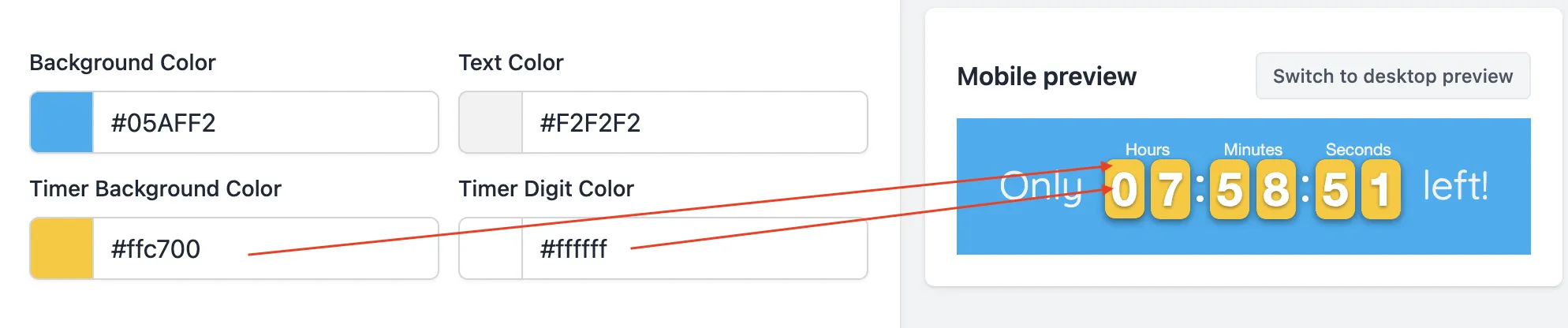
The timer label color will be the same as the color of the text in the message.
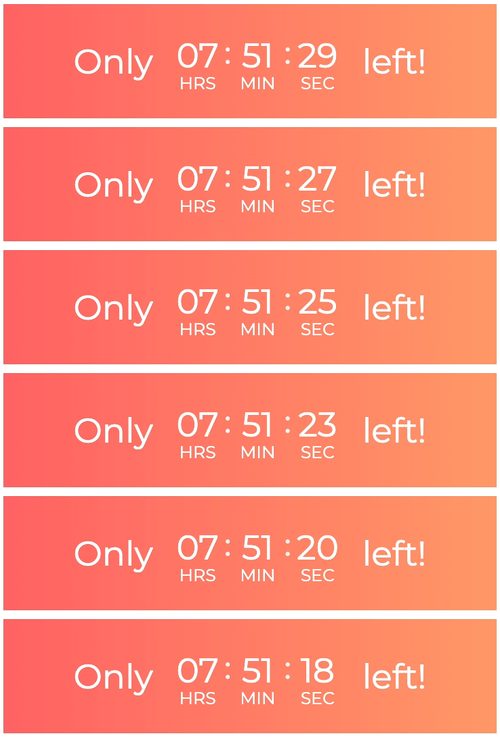
This timer provides a minimalist design. No frames around the numbers and no animations.
Labels
This timer style allows you to turn labels on and off, as well as customize the labels to be displayed.
Days as Hours
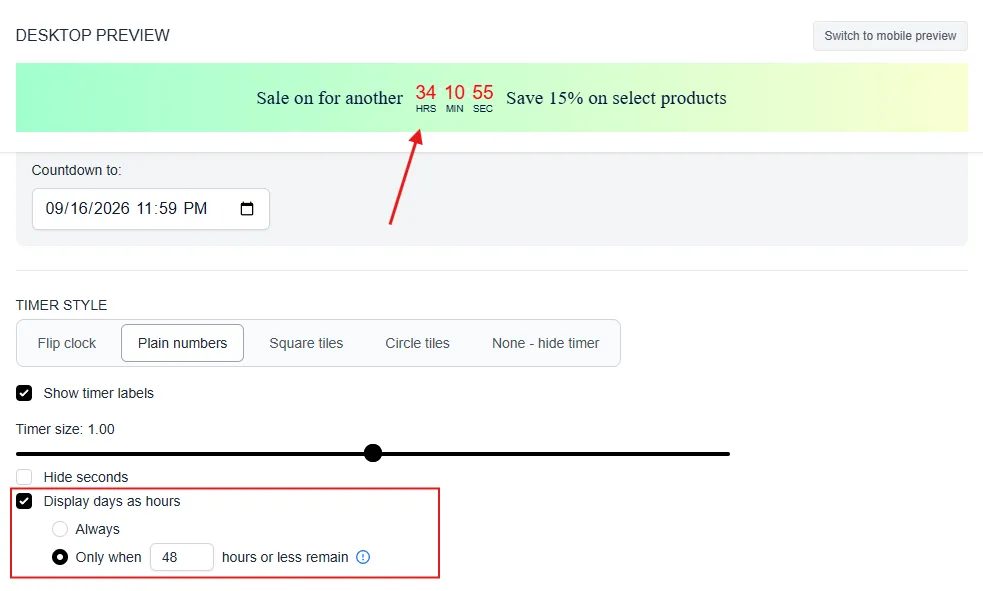
Plain Numbers, Square Tiles, and Circle Tiles can be set to roll days into hours, allowing the hours countdown to go above 23 hours. This option is not available on the Flip Clock timer.
You can display days as hours always, or only once a certain amount of time is left — for example, showing a days column until there are 48 hours remaining, then switching to show days as hours from that point on.
Colors
You can set the color of the number as well as the colon separator.

Fonts
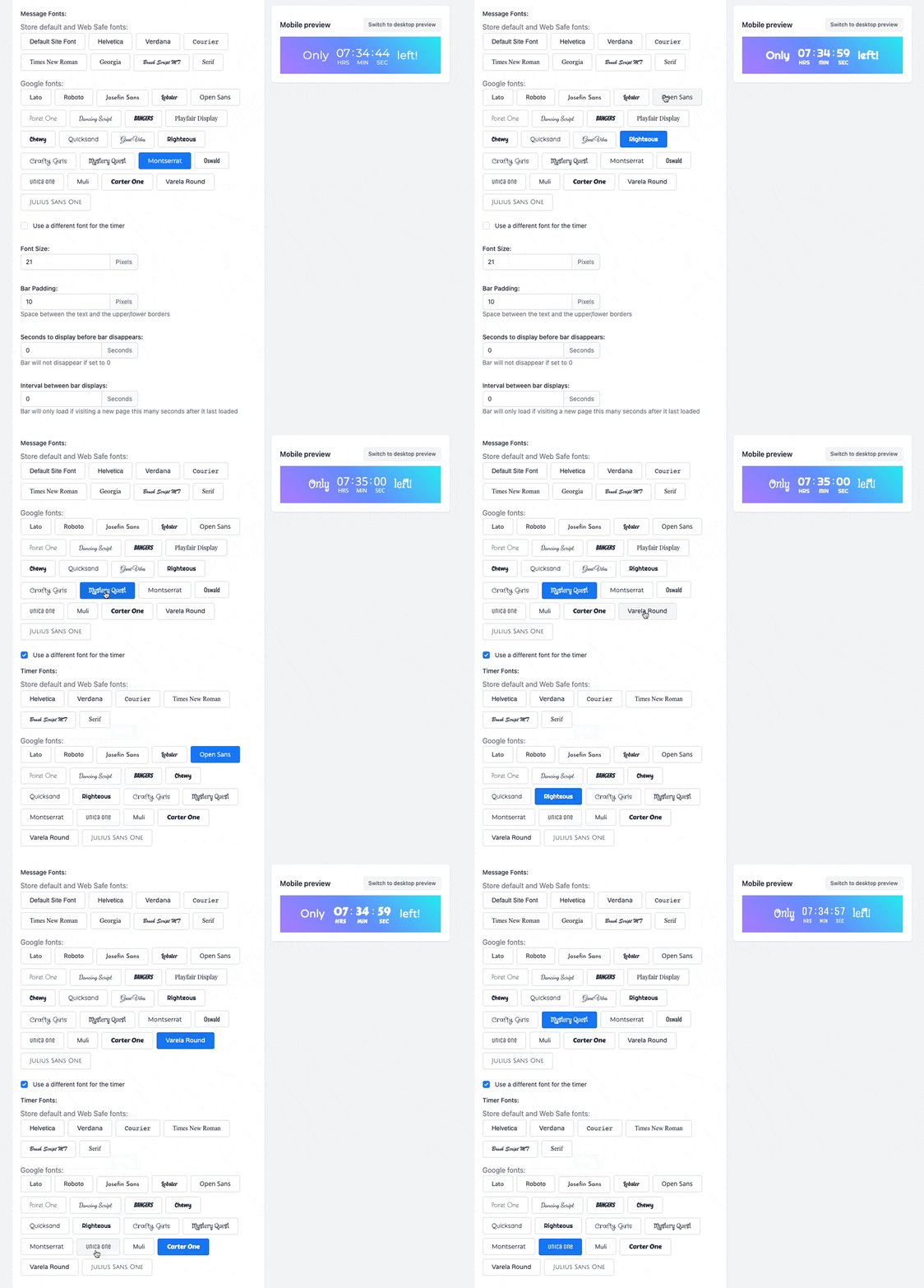
By default, this timer will use the same font as the message text. But you can check the box to use different fonts for the message and the timer.
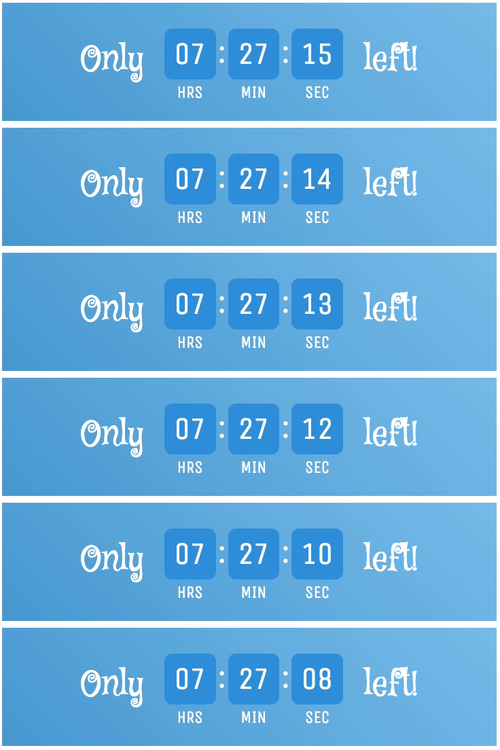
This timer frames the numbers with a rounded square tile. The lack of animations offers a minimalist look.
Labels
This timer style allows you to turn labels on and off, as well as customize the labels to be displayed.
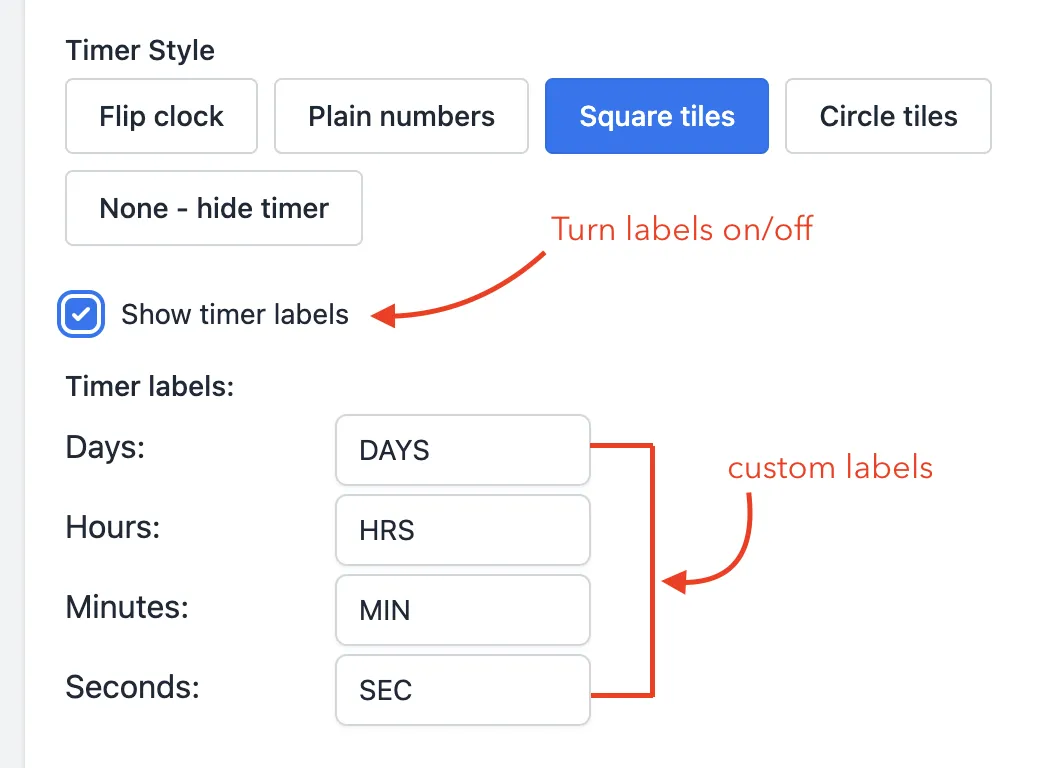
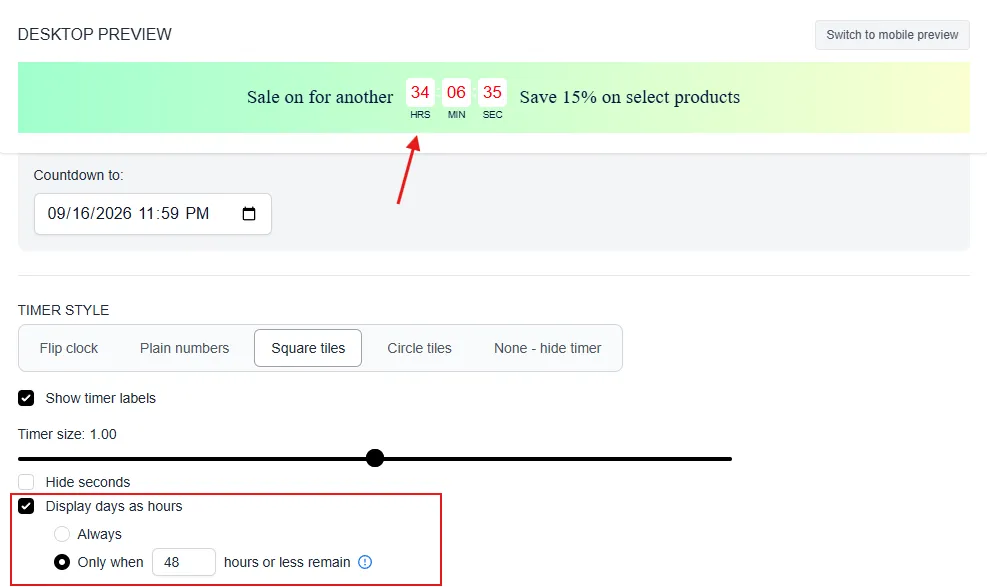
Days as Hours
Plain Numbers, Square Tiles, and Circle Tiles can be set to roll days into hours, allowing the hours countdown to go above 23 hours. This option is not available on the Flip Clock timer.
You can display days as hours always, or only once a certain amount of time is left — for example, showing a days column until there are 48 hours remaining, then switching to show days as hours from that point on.
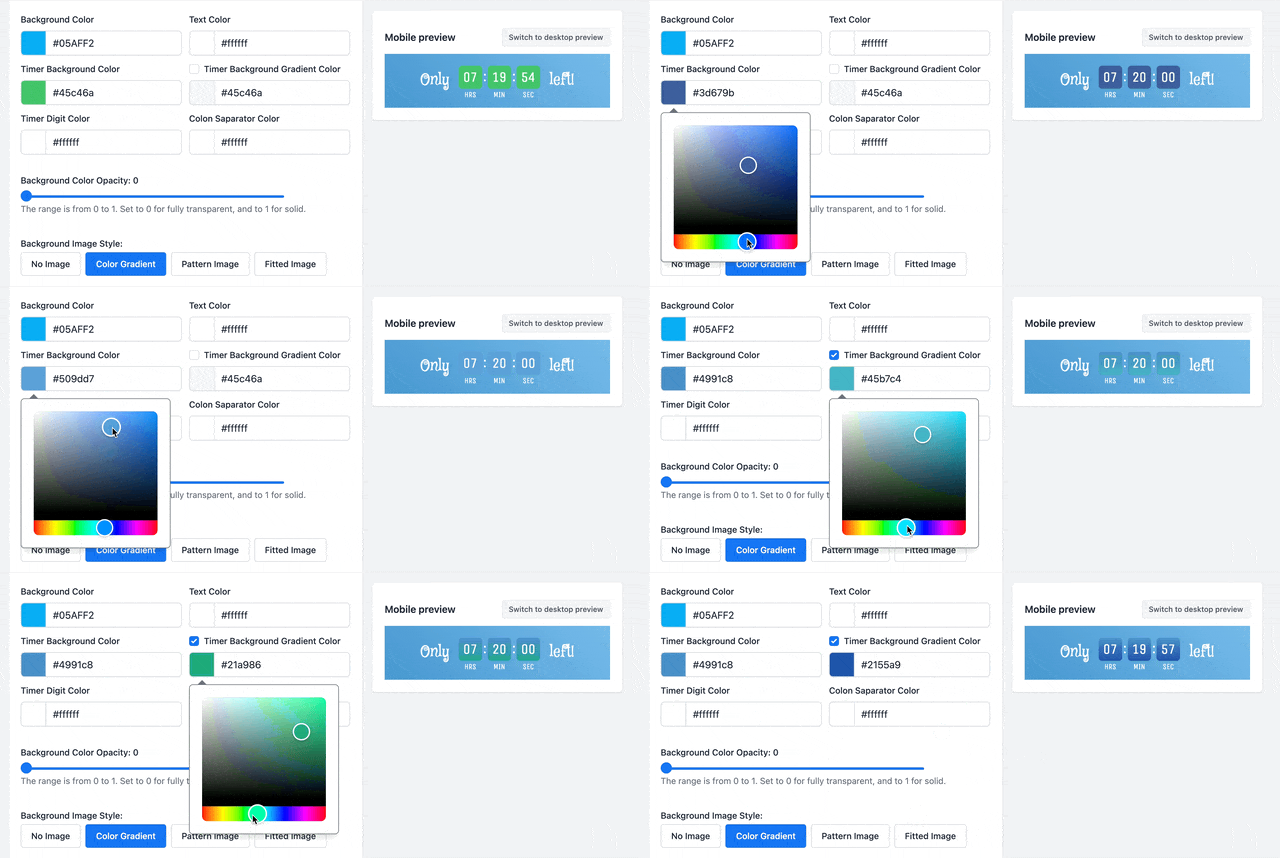
Colors
You can set the color of the square tiles. There is the option of using a gradient color, with one color set to the top and the other set to the bottom.
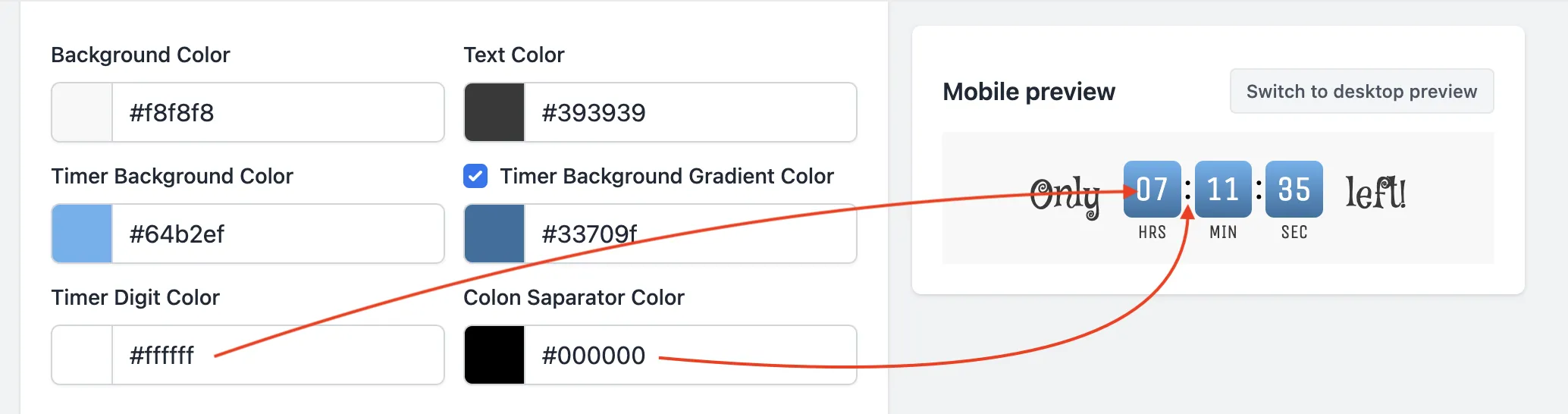
You can also set the color for the timer numbers and the colon separators.
Fonts
By default, this timer will use the same font as the message text. But you can check the box to use different fonts for the message and the timer.
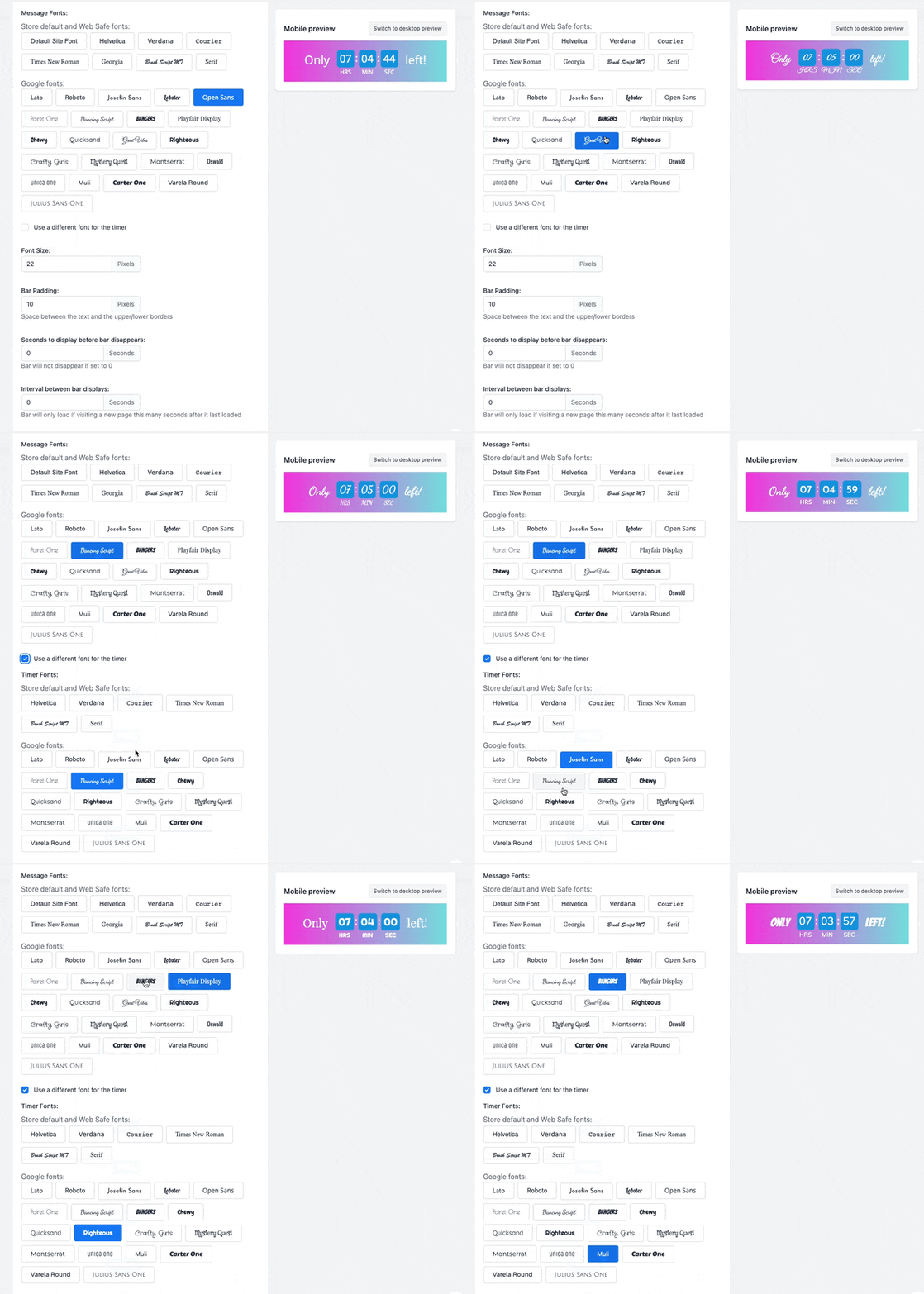
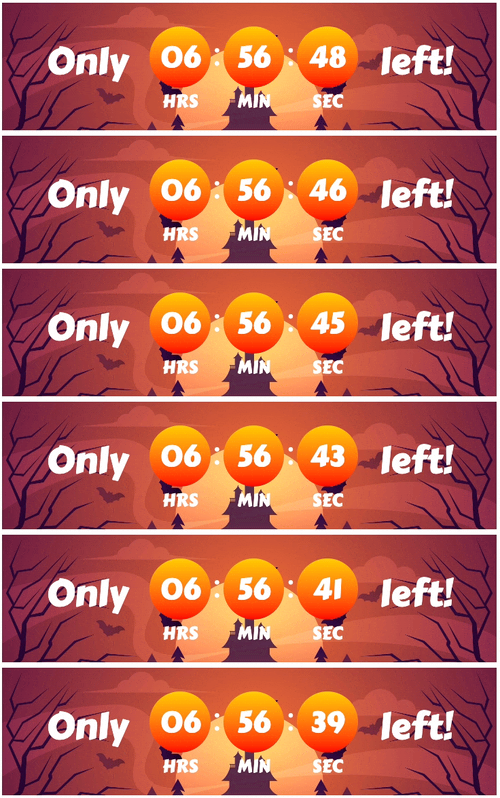
This timer frames the numbers with a circle tile. The lack of animation offers a minimalist look.
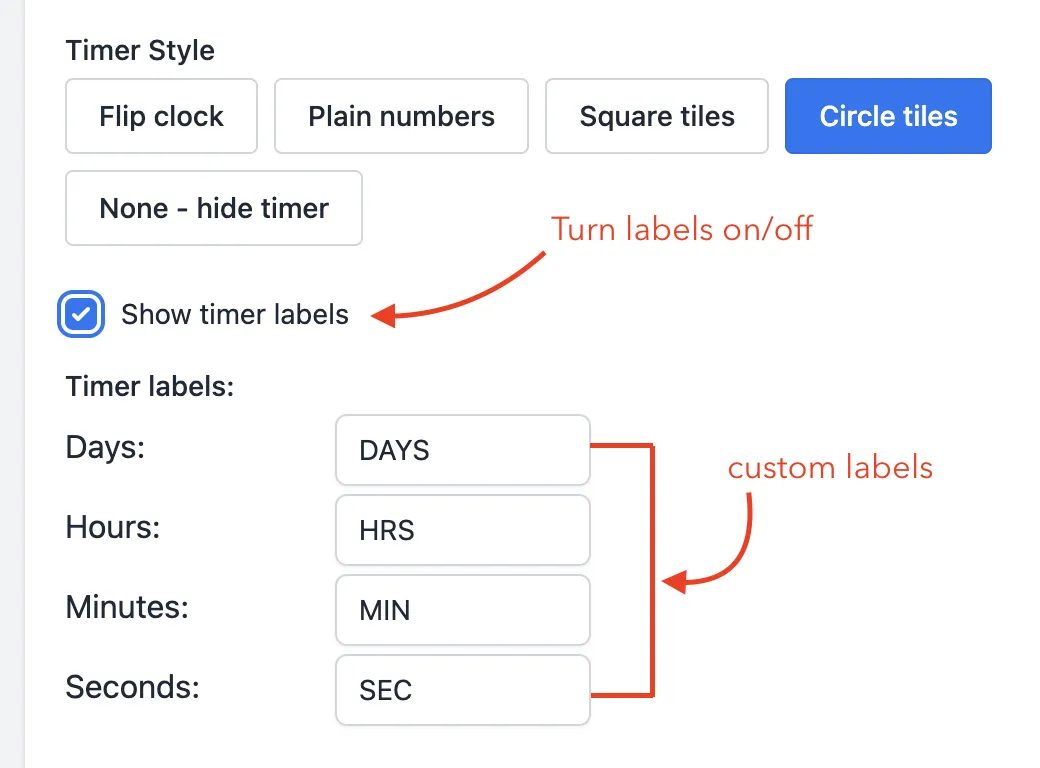
Labels
This timer style allows you to turn labels on and off, as well as customize the labels to be displayed.
Days as Hours
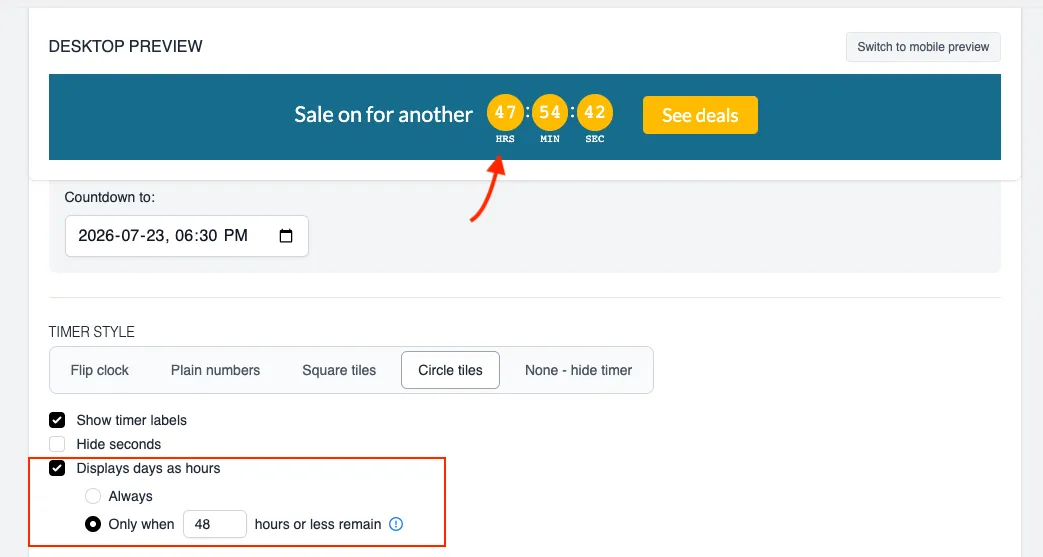
Plain Numbers, Square Tiles, and Circle Tiles can be set to roll days into hours, allowing the hours countdown to go above 23 hours. This option is not available on the Flip Clock timer.
You can display days as hours always, or only once a certain amount of time is left — for example, showing a days column until there are 48 hours remaining, then switching to show days as hours from that point on.
Colors
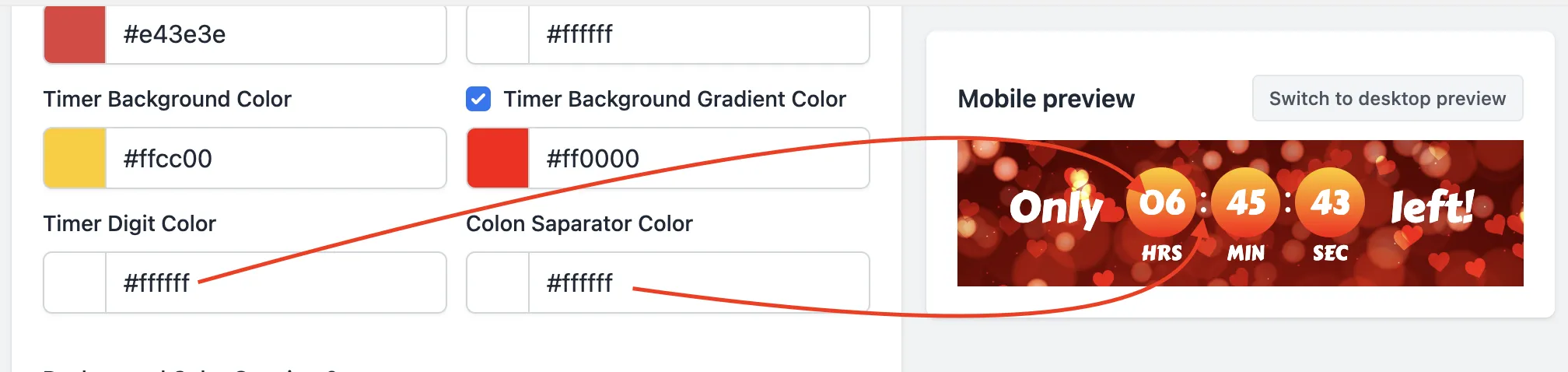
You can set the color of the circle tiles. There is the option of using a gradient color, with one color set to the top and the other set to the bottom.
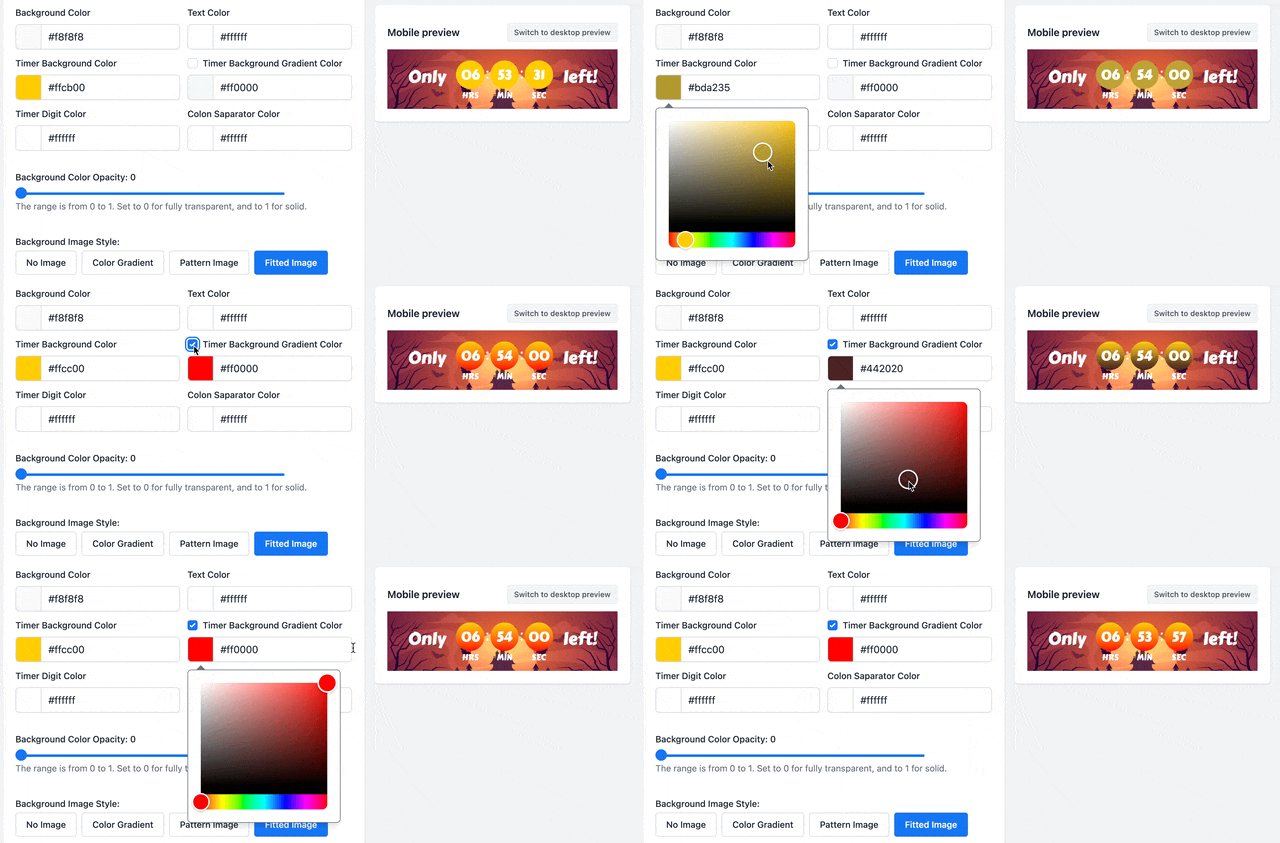
You can also set the color for the timer numbers and the colon separators.
Fonts
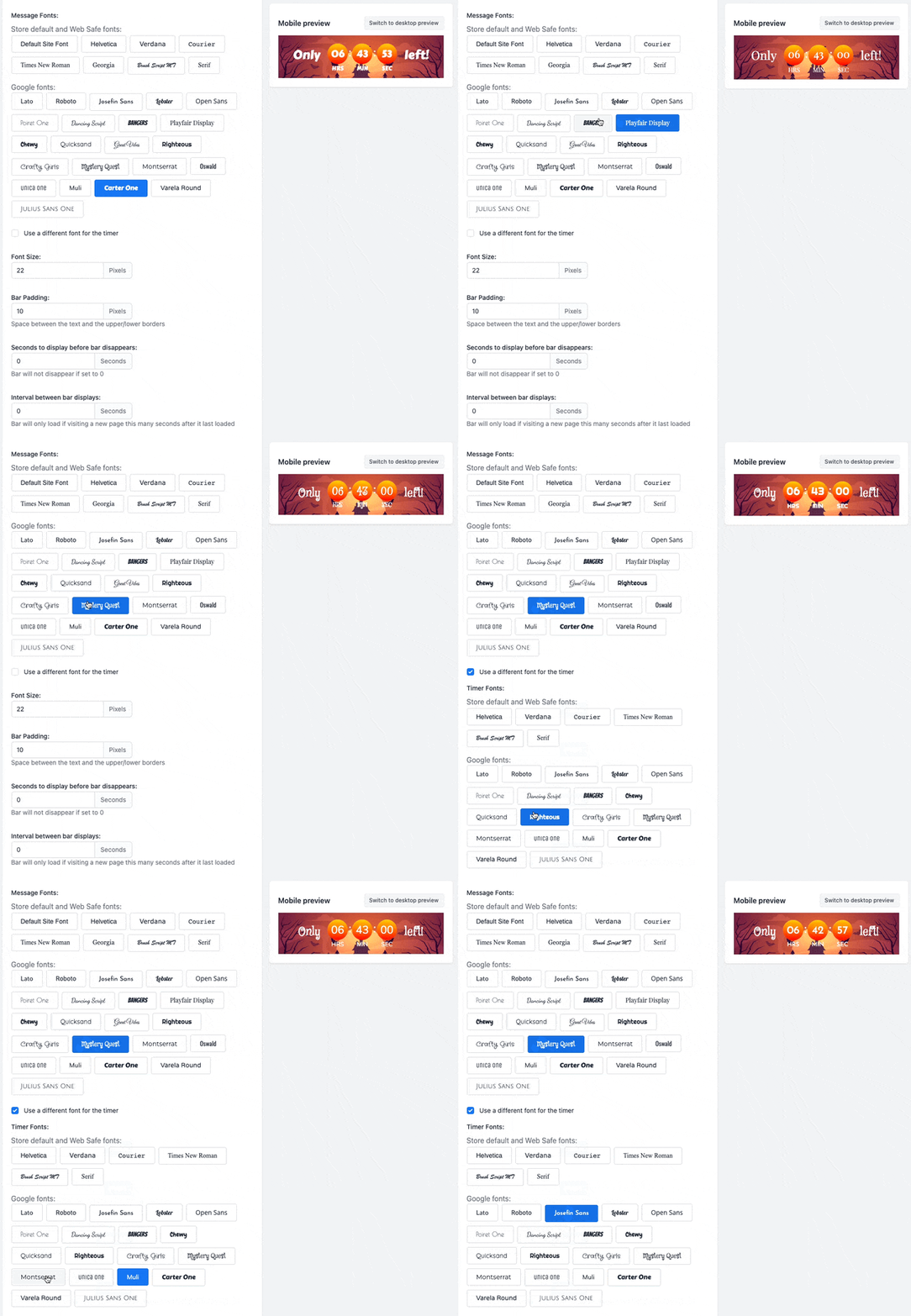
By default, this timer will use the same font as the message text. But you can check the box to use different fonts for the message and the timer.
This option allows you to use the bar without displaying a timer. This can be helpful if you would like to make use of the app’s scheduling functionality to display a regular message without a timer.
Simply select None – hide timer to display a message without a timer.

If you have any further questions or concerns about the app, please contact us at help@hextom.com