
Features
Targeting: Pages
This article explains how to use the Page Targeting feature to control which pages of your store display the Countdown Timer Bar. By default, the Countdown Timer Bar appears on all pages of your store — use the Page Targeting feature to control exactly where it displays.
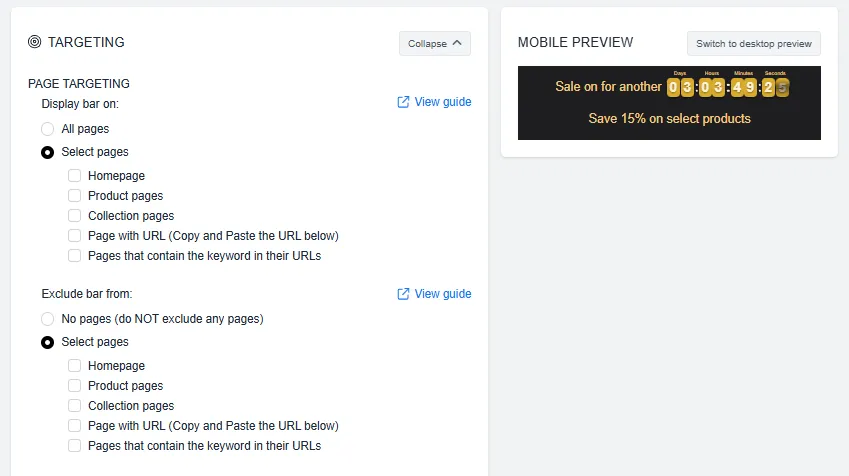
Page Targeting Preview
Note: The Countdown Timer Bar cannot be displayed on the checkout page. (This is a Shopify platform restriction.)
Homepage Only
If you want the Countdown Timer Bar to be displayed only on your store’s homepage, select the Homepage option under Select pages.
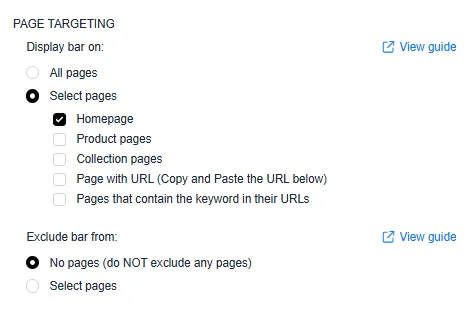
Homepage Only
Product Pages Only
If you want the Countdown Timer Bar to be displayed only on product pages, select the Product pages option under Select pages.
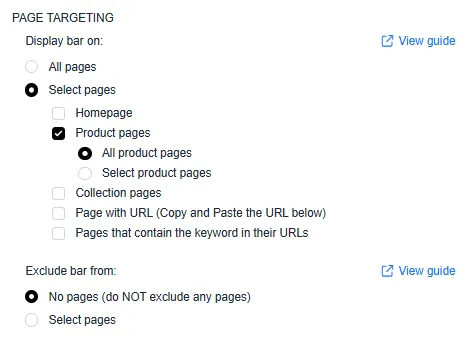
All product pages
Additionally, you can choose to display the bar only on selected products by choosing them individually, by collection, or by tags.
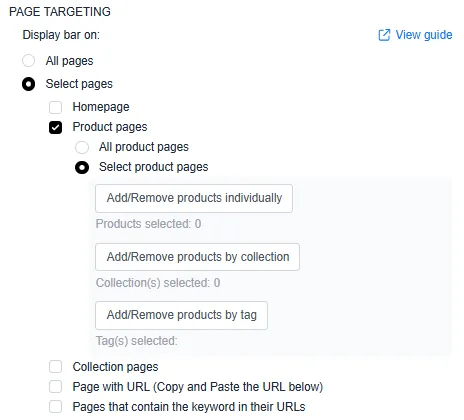
Product pages > Select product pages individually, by collection, and/or by tag
Collection Pages Only
If you want the Countdown Timer Bar to be displayed only on your store’s collection pages, you can select the “Collection pages only” option under Select pages:
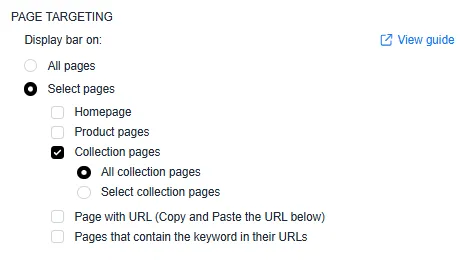
All collection pages
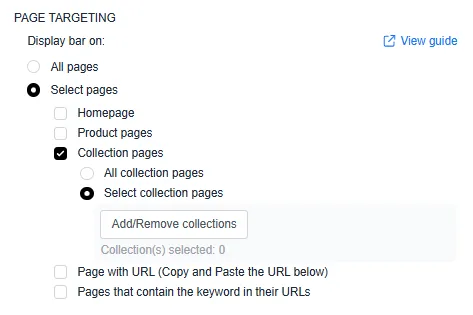
Select collection pages
Target a Single Specific Page (by URL)
If you want the Countdown Timer Bar to be displayed on one specific page, enter the URL of that page in the provided text field.
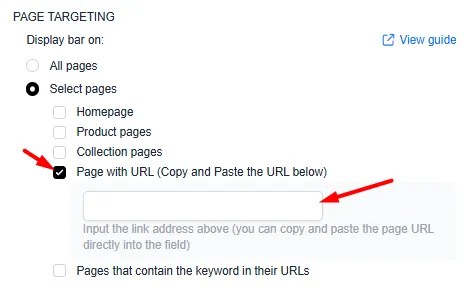
Only on page with URL > copy and paste URL in the box
An easy way to do this is to head over to the page you want to target on your store, copy its URL and then paste the URL ininto the “Page with URL” field.
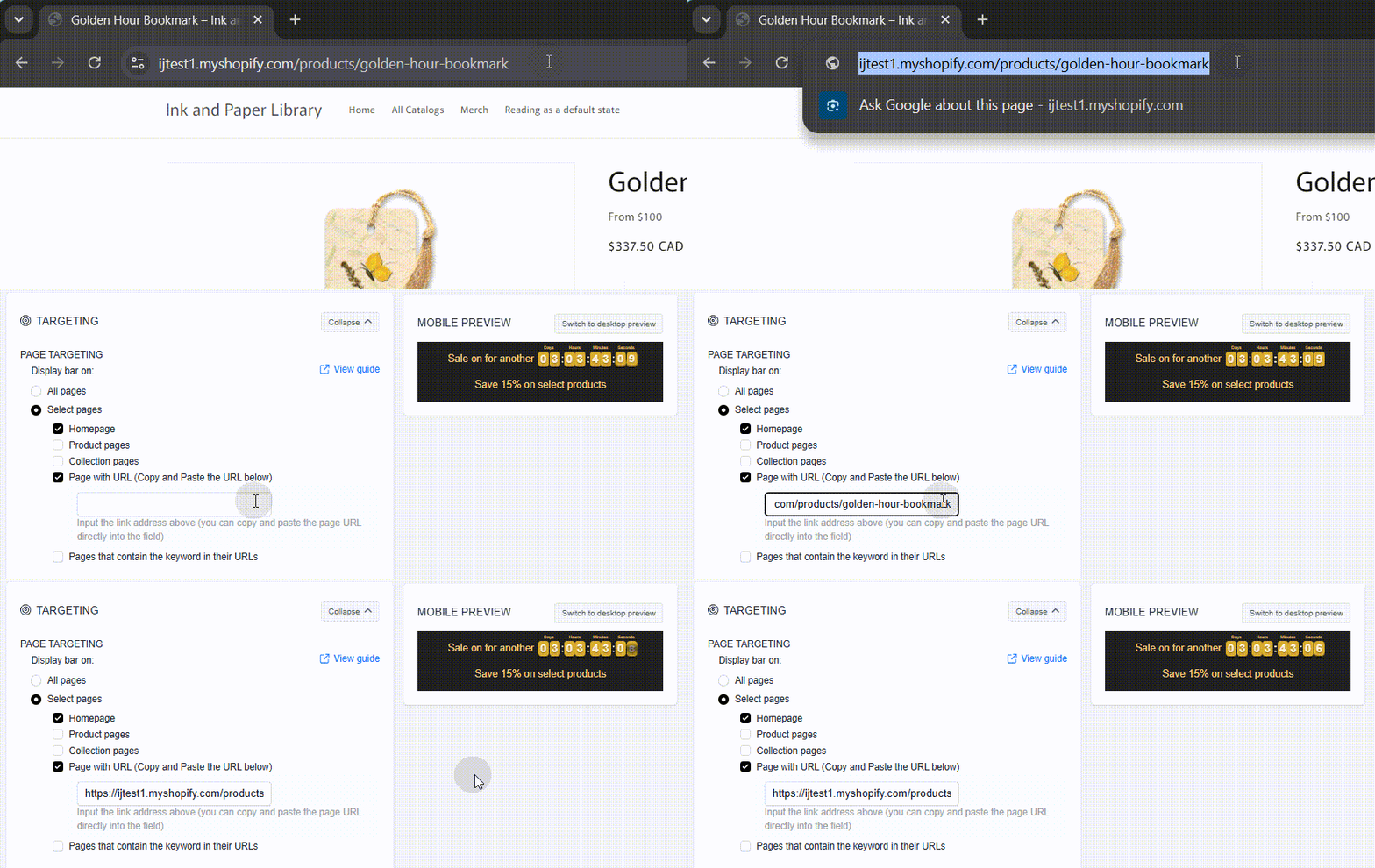
How to copy and paste URL
Note: You can only target one URL using this option. If you need to target multiple pages, use the keyword targeting method instead.
Only Pages That Contain the Keyword in Their URLs
If you would like to target multiple pages, you can use this keyword option instead. In this field, you can enter keywords, and if a page URL contains any of the specified keywords, the bar will be displayed.
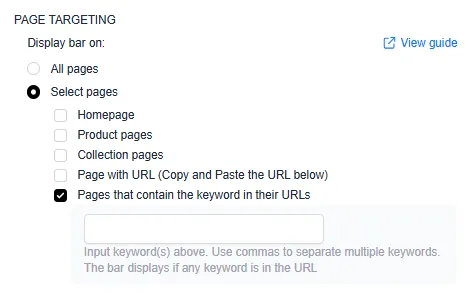
Only on pages that contain a specific keyword in their URLs
Example #1
If you want the bar to display on all pages with summer in the URLs, you would simply enter the keyword summer, like so:
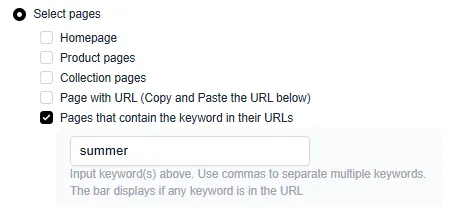
Only on pages that contain keyword “summer” in their URLs
This would result in the bar displaying on all three of these pages:
- example.myshopify.com/summer-shirt
- example.myshopify.com/summer-shoe
- example.myshopify.com/summer-trouser
If summer is in any part of the URL, the bar will qualify to display on that page.
You can enter multiple keywords if you like and simply separate them by a comma:
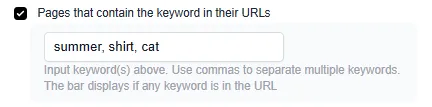
Only on pages that contain keywords “summer” “shirt” and “cat” in their URLs
Example #2
You can also target specific pages precisely by entering their URL paths as keywords. Since the keyword field checks whether a page’s URL contains the entered text, using the URL path (the part after “.com”, “.ca”, etc.) will match that exact page.
For example, if you want the bar to display only on these two pages:
- example.myshopify.com/cart
- example.myshopify.com/products/braves-shirt-new
Enter the URL paths separated by a comma:
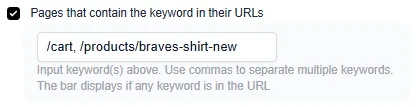
Only on pages that contain keyword “/cart” and “/products/braves-shirt-new” in their URLs
Multiple Targeting Options
You can also enable multiple targeting options at once. The Countdown Timer Bar will then be displayed on all of the selected options. For example, the following targeting configuration would set the bar to display on the homepage, all product pages, and pages with the keyword “shirt” in their URLs.
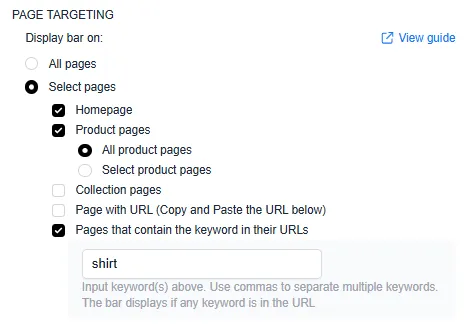
Multiple targeting options enabled
Excluding Pages
The Exclude bar from option works similarly, but it ensures that the bar does not display on specific pages. For example, to ensure the bar does not display on the homepage, you would set it like this:
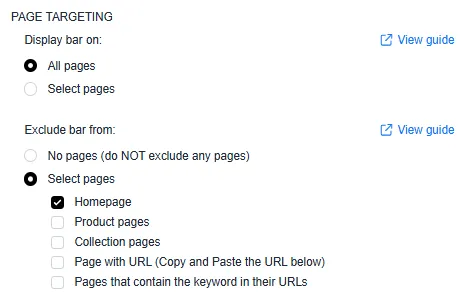
Exclude page from options
This will display the bar on all pages except the homepage. Follow the same approach for other pages you want to exclude.
With the logic above, you can select whether to include or exclude the bar on certain pages.
If you have any questions or need further assistance, feel free to contact us at help@hextom.com. We’re happy to help!