
FAQs
Auto-Coverage replacing Manual or AI Translations
There are cases where translations made with the Manual Translation Tool or AI translation are replaced by the Auto-Coverage feature. We can verify if this is the case by following these steps:
- Confirm that Auto-Coverage is enabled for the language. In the app, go to Markets, select the language, then open More Actions to check its Auto-Coverage setting. Auto-Coverage is available only on paid plans.
- Find the text in the Manual Translation Tool and check that your translation (manual or AI) is saved there, then compare it with what appears on the storefront.
- If the translated text changes to a different version after the page finishes loading, it indicates that the Auto-Coverage translation has replaced the original translation.
Example
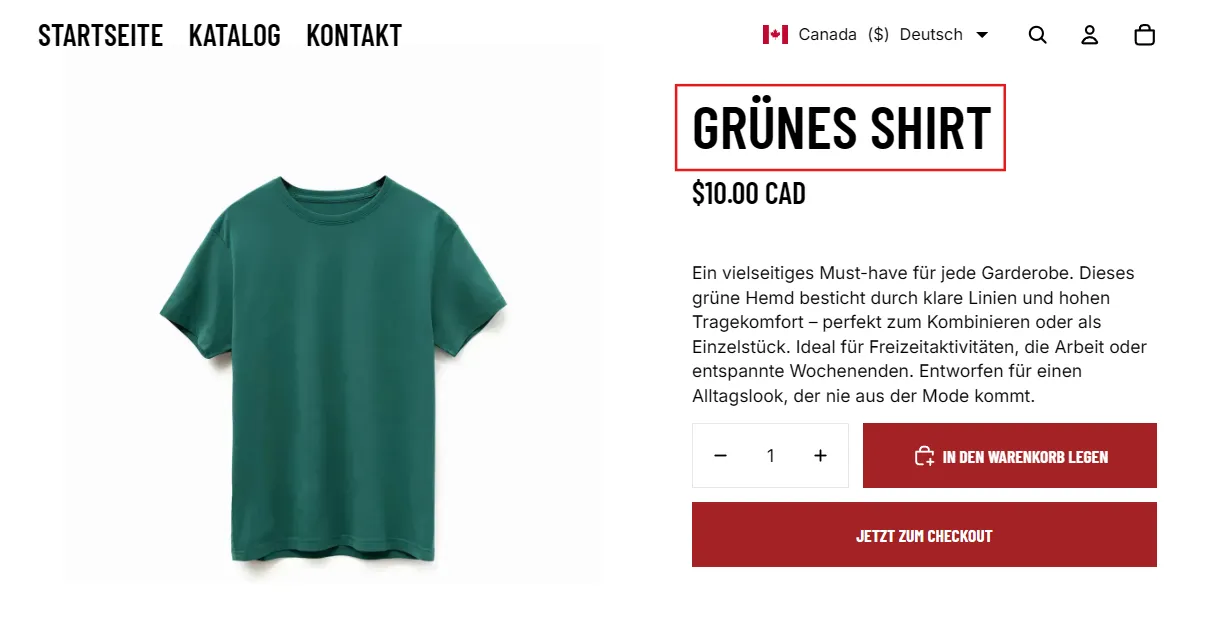
In this example, the product title’s original (base) text is Green Shirt. For German shoppers, the merchant translated it to a more descriptive title: Grünes Baumwoll-T-Shirt (green cotton T-shirt).
While the store is loading, the product title shows the merchant’s translation, Grünes Baumwoll-T-Shirt:
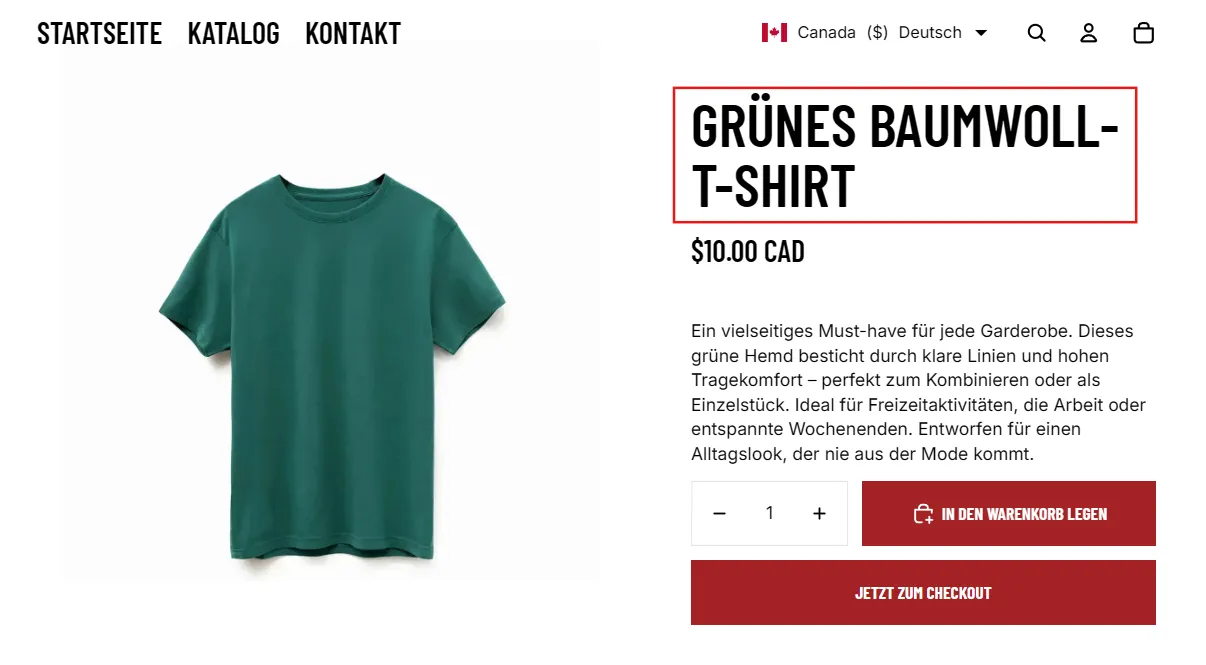
Shortly after the page finishes loading, Auto-Coverage replaces it with its own literal translation of the base text, Grünes Shirt:
Solution
To stop Auto-Coverage from replacing a translation, wrap the translated text with the following code, placing your translation between the tags:
<span class="notranslate">Your translated text</span>Where you add this code depends on whether the text supports HTML:
- Text that doesn’t support HTML, like product titles: use the Visual Editor Tool.
- Text that supports HTML, like product descriptions: use the Manual Translation Tool.
Tip: To check whether a text supports HTML, find it in the Manual Translation Tool. If the code view icon (<>) is available for that text, it supports HTML.
In the example above, the affected text is a product title, which doesn’t support HTML, so we fix it with the Visual Editor Tool.
Visual Editor Tool
Use this for text that doesn’t support HTML, like product titles.
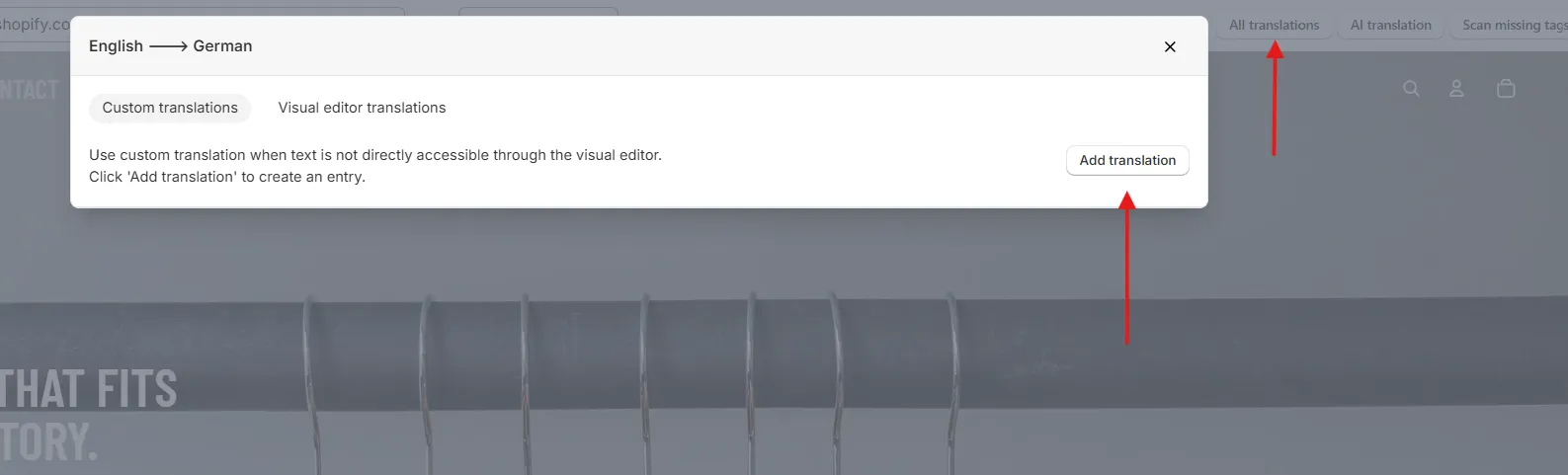
- Navigate to the Visual Editor Tool from the Translation page in our app.
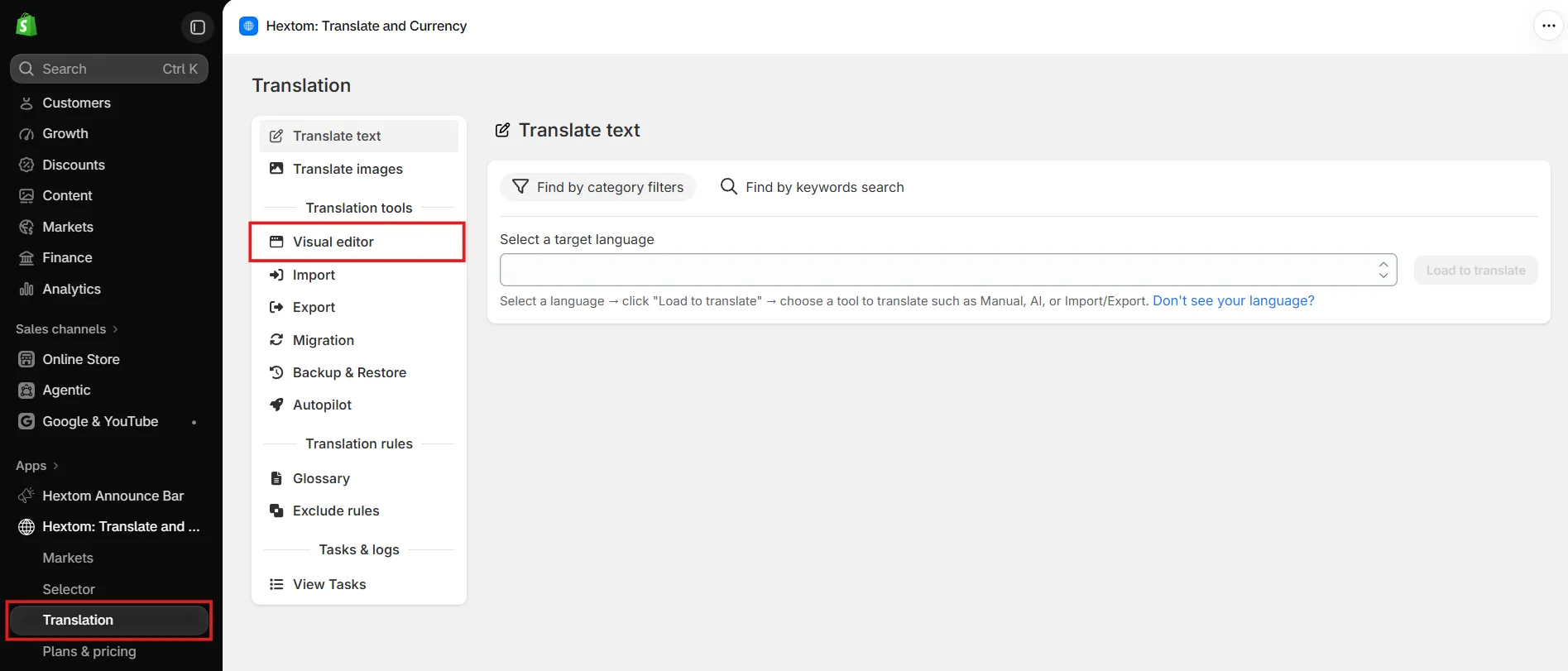
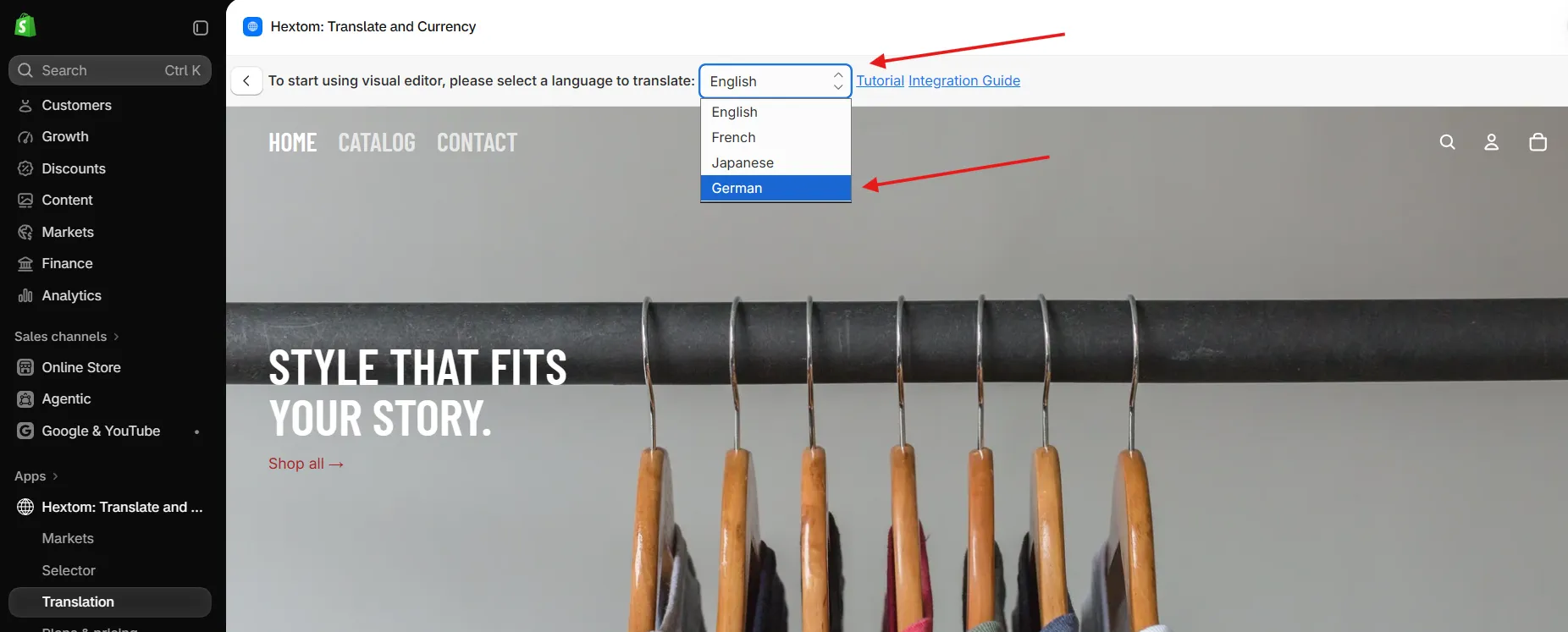
- Select your target language for translation, which can be found at the top of the page.
- Click All translations at the top right, then click Add translation to add a custom translation.
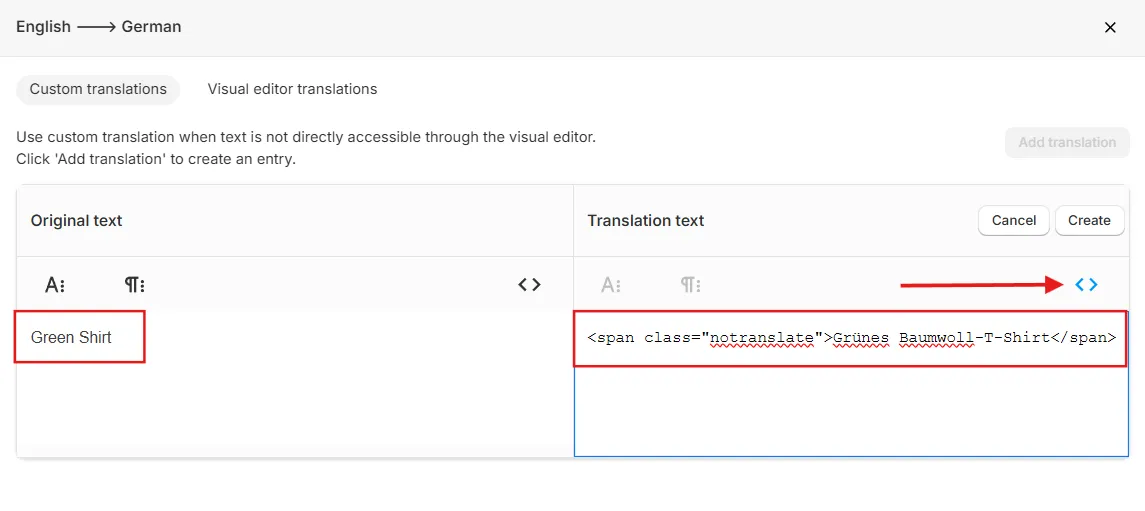
- Enter the original text exactly as it appears in your default language. In the Translation text field, click the code view icon (
<>), then enter the translation wrapped with<span class="notranslate">Your translated text</span>.
- Click the code view icon (
<>) again to turn it off, then click Create to add the translation.
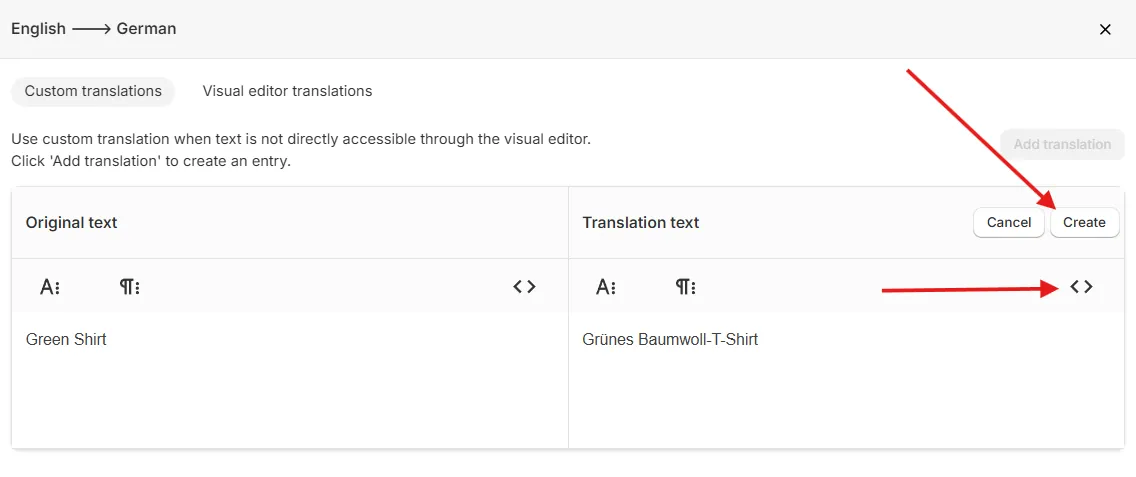
That’s it for the example above. If the affected text supports HTML instead, such as a product description, follow the Manual Translation Tool steps below.
Manual Translation Tool
Use this for text that supports HTML, like product descriptions.
- Go to the Translation page from the app sidebar navigation.
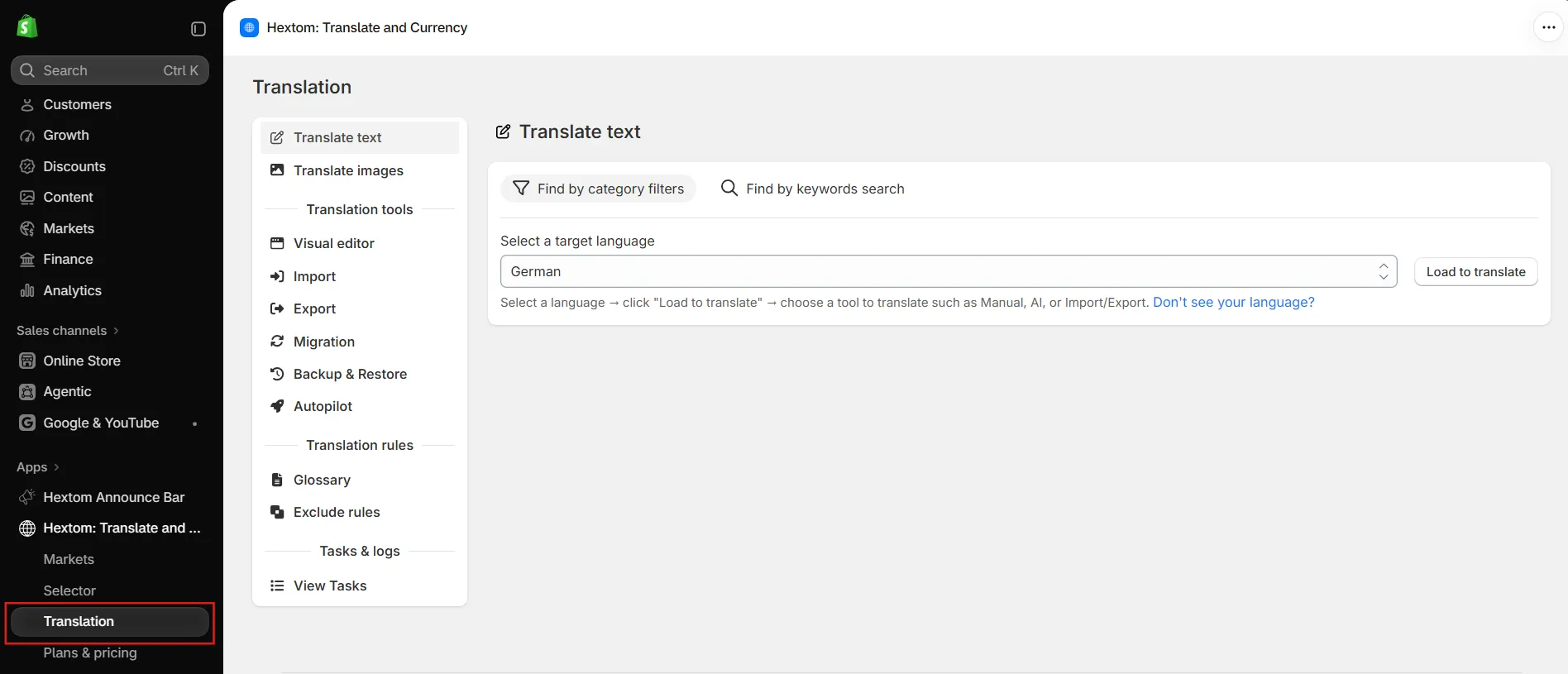
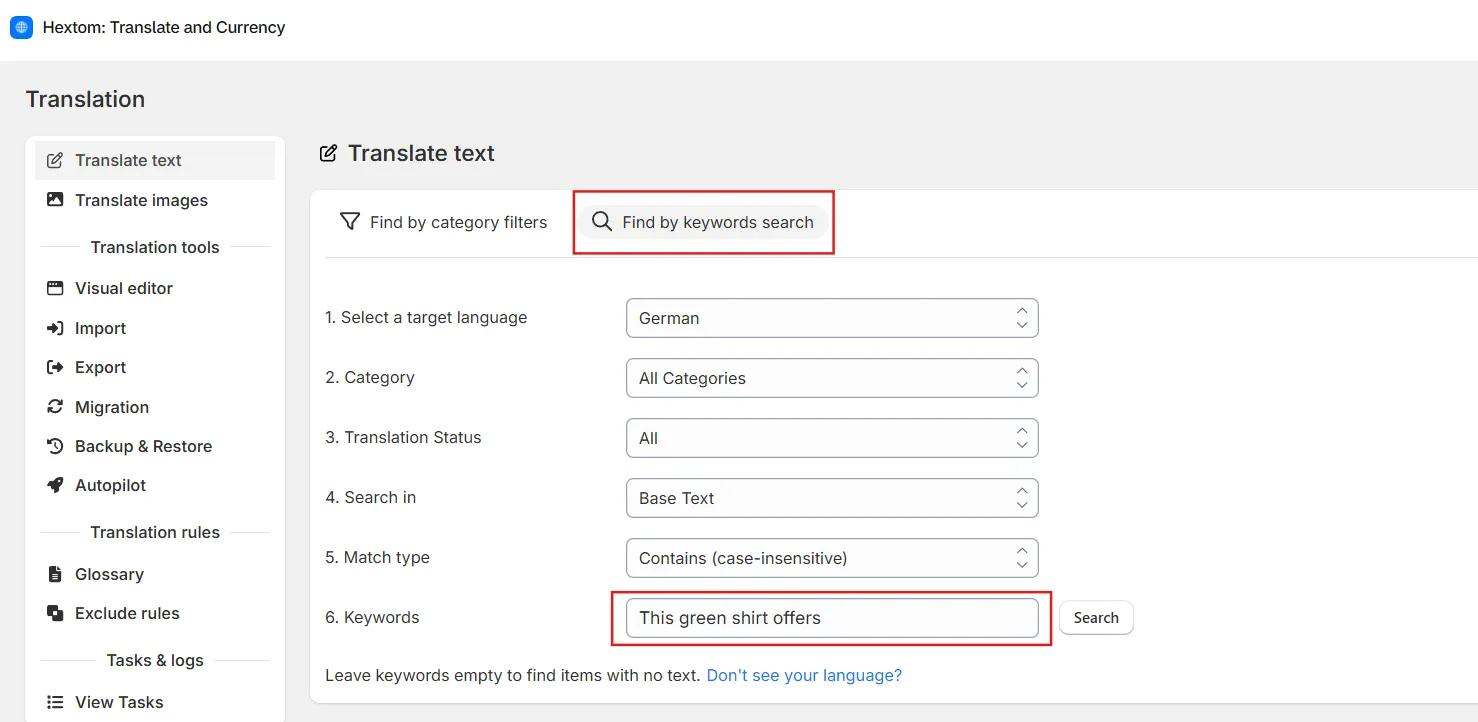
- In the Manual Translation Tool, use either the keyword search or category filters to find the text, then click Search (keyword search) or Load to translate (category filters).

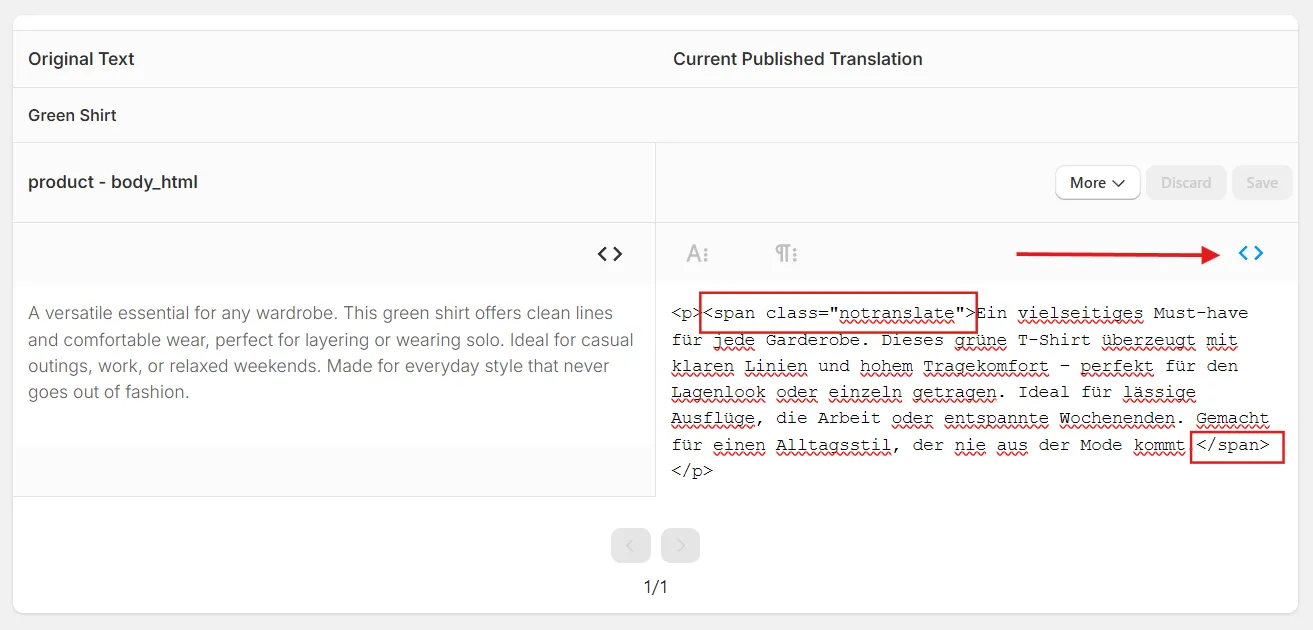
- Once you find the text, click the code view icon (
<>) in the translation field, then wrap the translation text with<span class="notranslate">Your translated text</span>.
- Click the code view icon (
<>) again to turn it off, then click Save.
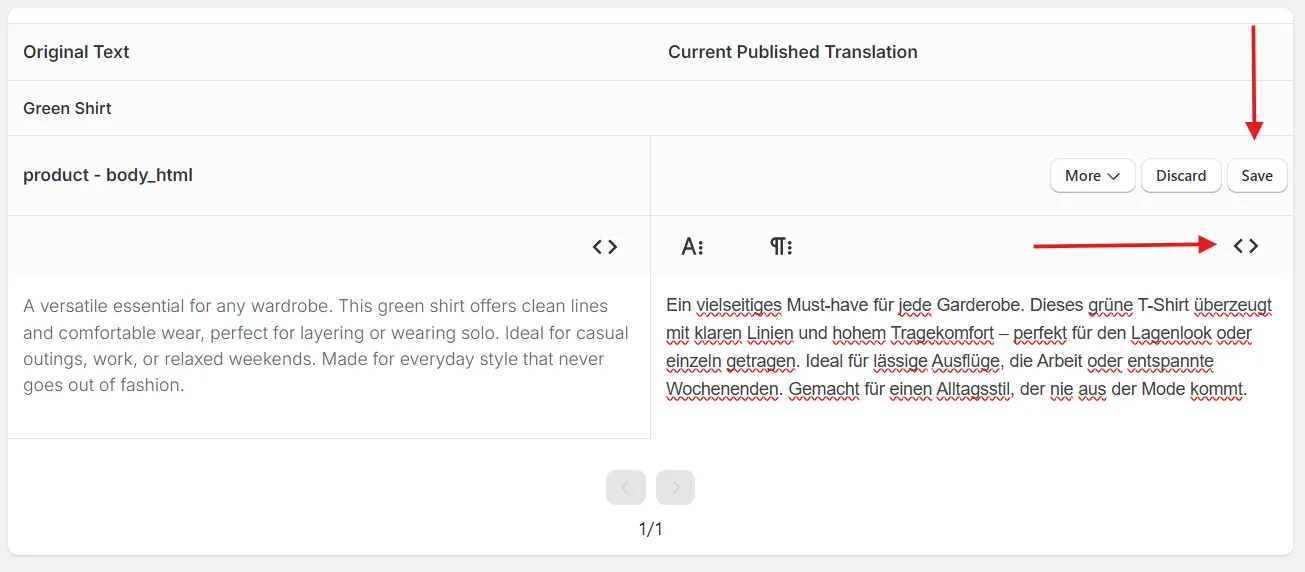
Once the translation text is wrapped with the code, Auto-Coverage will no longer replace it.
If you still have issues after following these instructions, please contact us for support.