
FAQs
How can I prevent Auto-Coverage or Basic Translations from translating some text?
Basic Translations and the Auto-Coverage feature are both designed to translate all the text on your store. Sometimes there might be some text that you do not want to translate this way, and this guide will explain how you can do this.
Use a Visual Editor custom translation
The easiest way is to provide a translation with another translation tool. The best one to use in this situation is the Visual Editor’s custom translations, covered in this guide: How to Use Custom Translations In Visual Editor.
When you create a Visual Editor custom translation, wrap the translation text with the code below. Without this wrapper, Auto-Coverage or Basic Translations can still replace it.
<span class="notranslate">Your translated text</span>To add the wrapper, click the code view icon (<>) in the Translation text field before entering your translation. For step-by-step instructions, see Auto-Coverage replacing Manual or AI Translations.
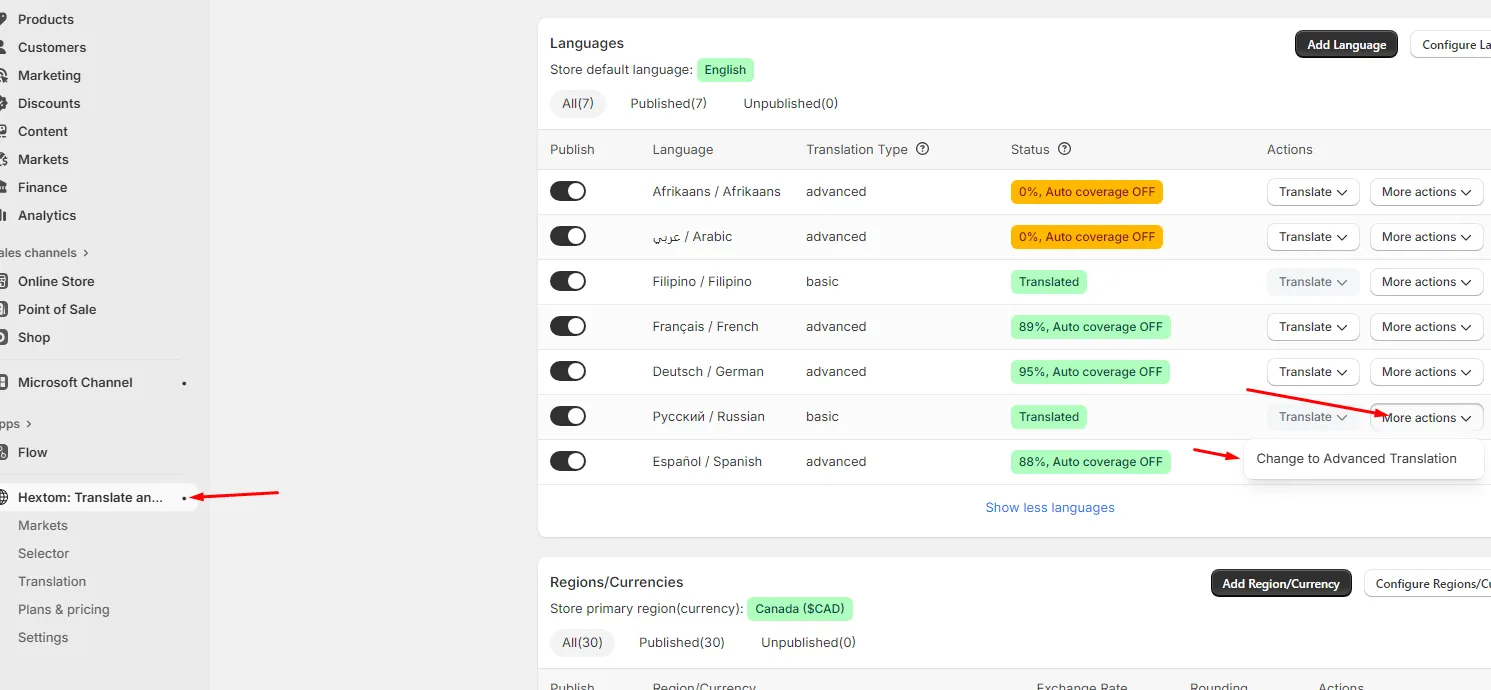
If you are using Basic Translations, you will need to change to Advanced Translations first. In the app, go to Markets, click More actions next to the language, and choose Change to Advanced Translation. Then create the Visual Editor custom translation, and change the language back to Basic Translations.
If you can’t use the Visual Editor
If you do not have access to the Visual Editor, you can make a Manual Translation with the Manual Translation Tool’s keyword search, covered in this guide: How to use Keyword Search to find text to translate. Wrap that translation with the same notranslate code as well.
This only works for text that supports HTML, such as product descriptions. You can tell because the code view icon (<>) is available for that text.
If you still have issues after following these instructions, please contact us for support.