
FAQs
How do I bulk delete products with Bulk Product Edit?
We have considered adding a bulk delete feature in the past. However, our design principle is to only support actions that can be fully reverted with a single click. Since deleting products is difficult to undo, we’ve decided not to support bulk deletion directly in the Bulk Product Edit app.
That said, you can still achieve bulk deletion by using a safe workaround:
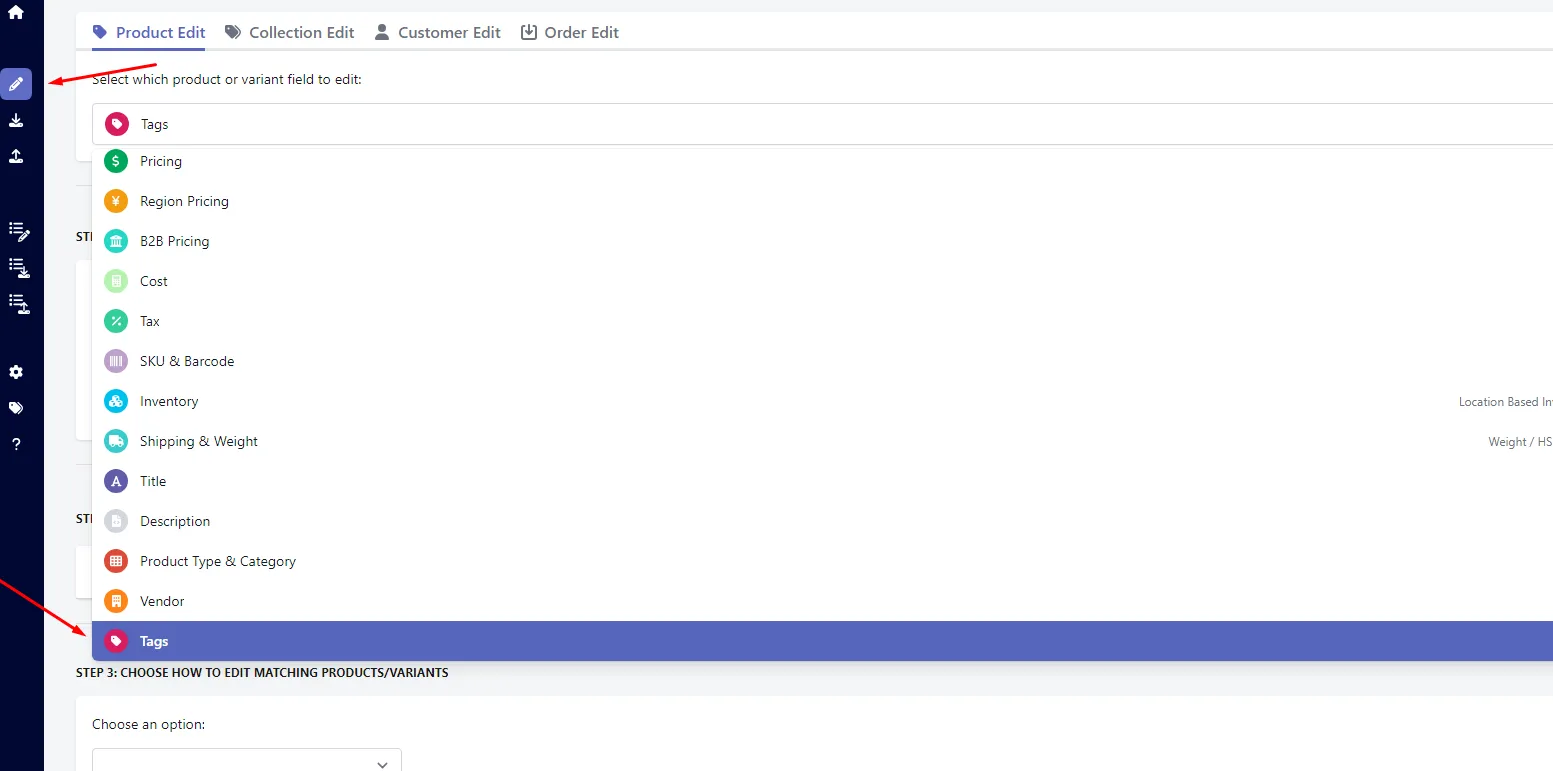
- Use product filters to select the products you want to remove (based on your specific use case).
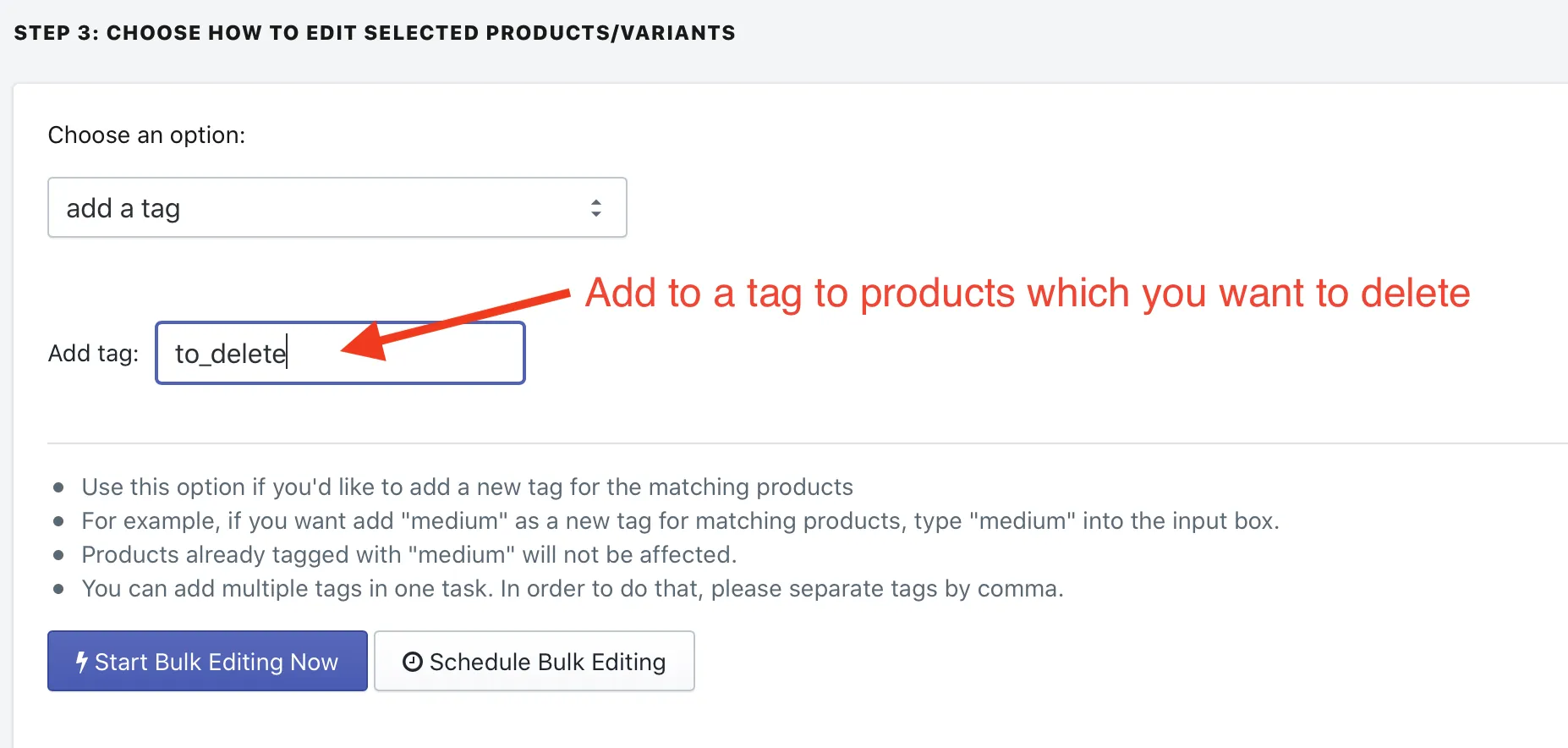
- Bulk add a tag, such as
to_delete, to the selected products. - Open Shopify’s Products page and filter products by the
to_deletetag. - Select all filtered products and delete them in bulk using Shopify’s built-in editor.
This approach allows you to review and confirm products before deleting them, helping prevent accidental data loss.
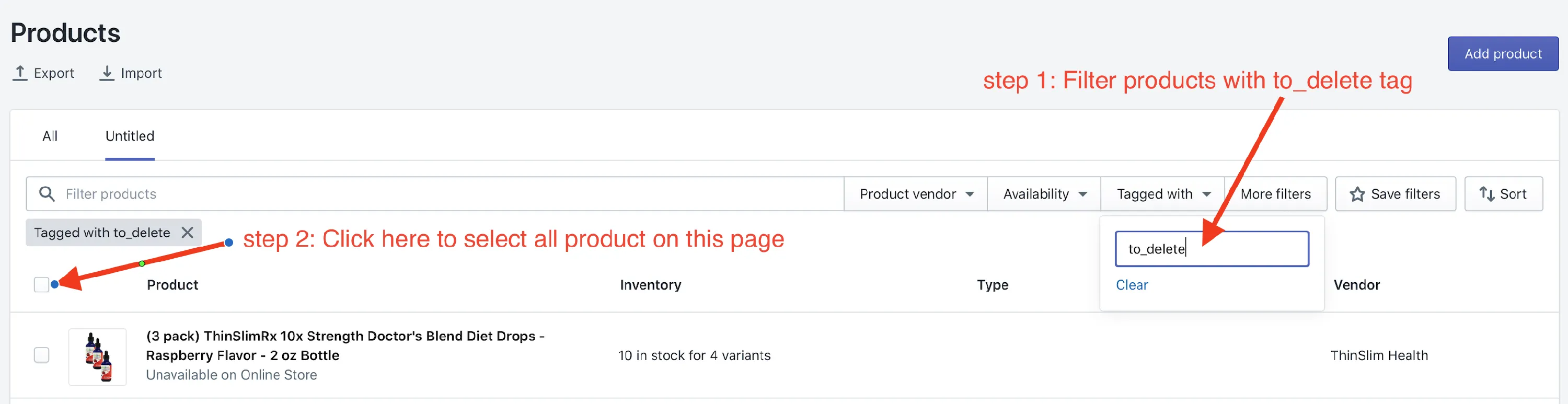
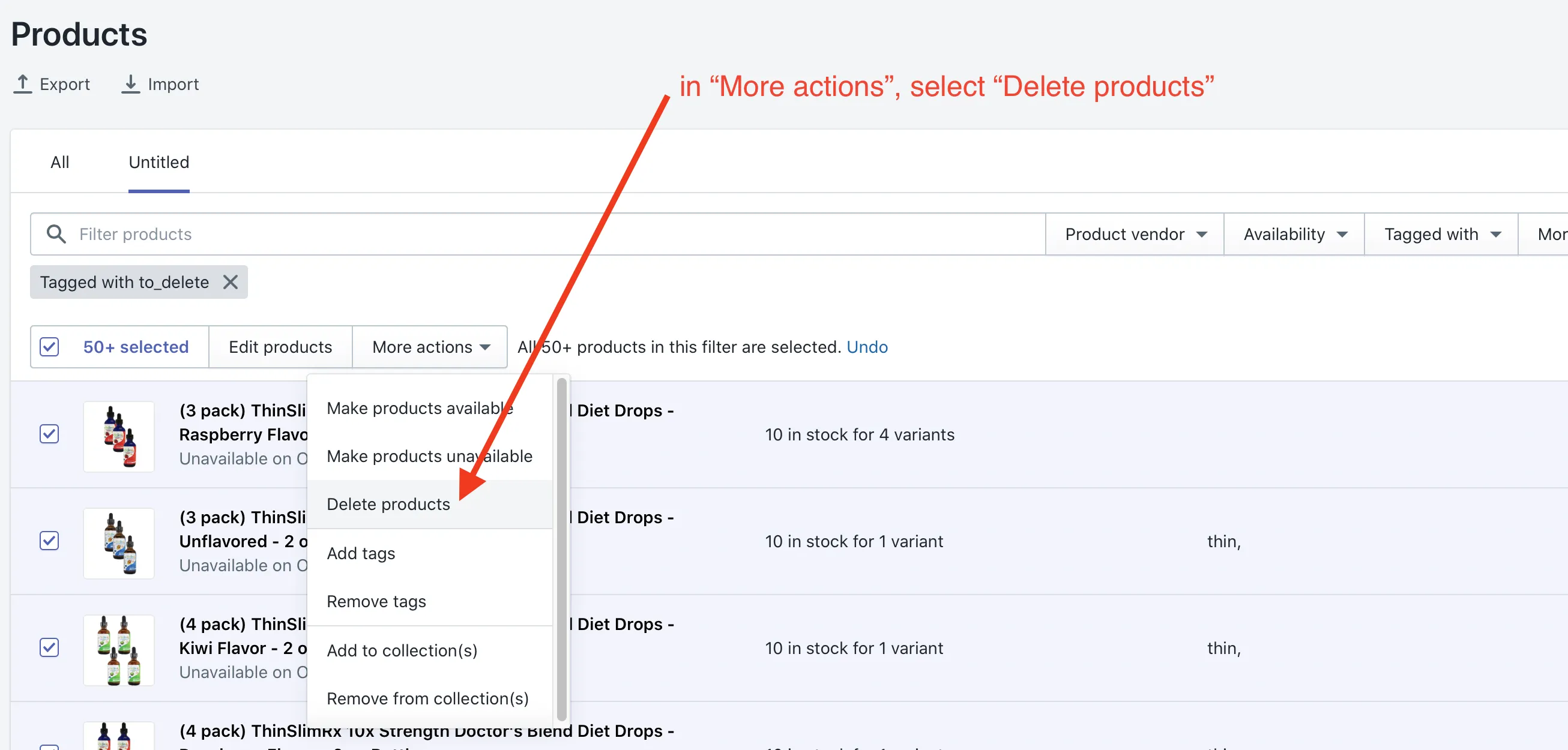
Go to Shopify admin products page, and filter products with “to_delete” tag, and click the checkbox to select all products on this page.
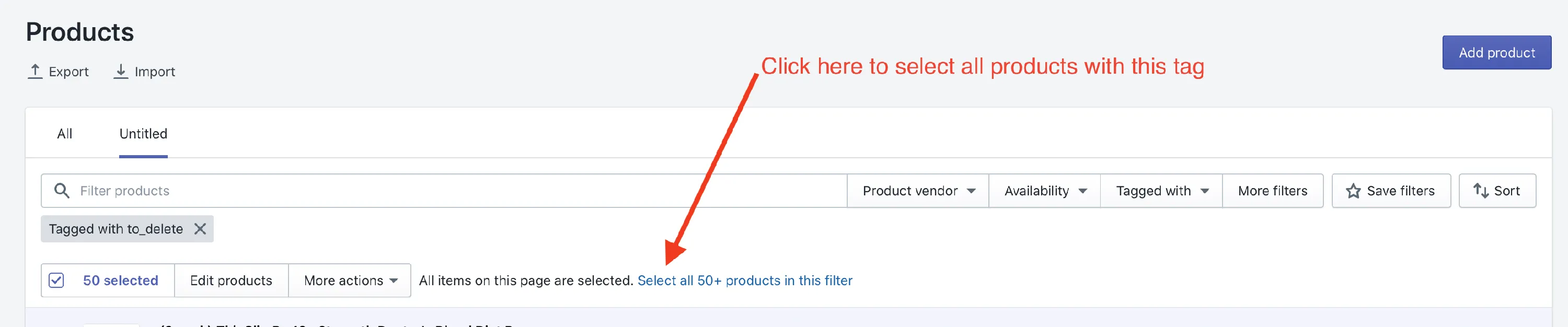
Select all products with this tag
Click “More actions”, click “Delete products”
Click “Delete”
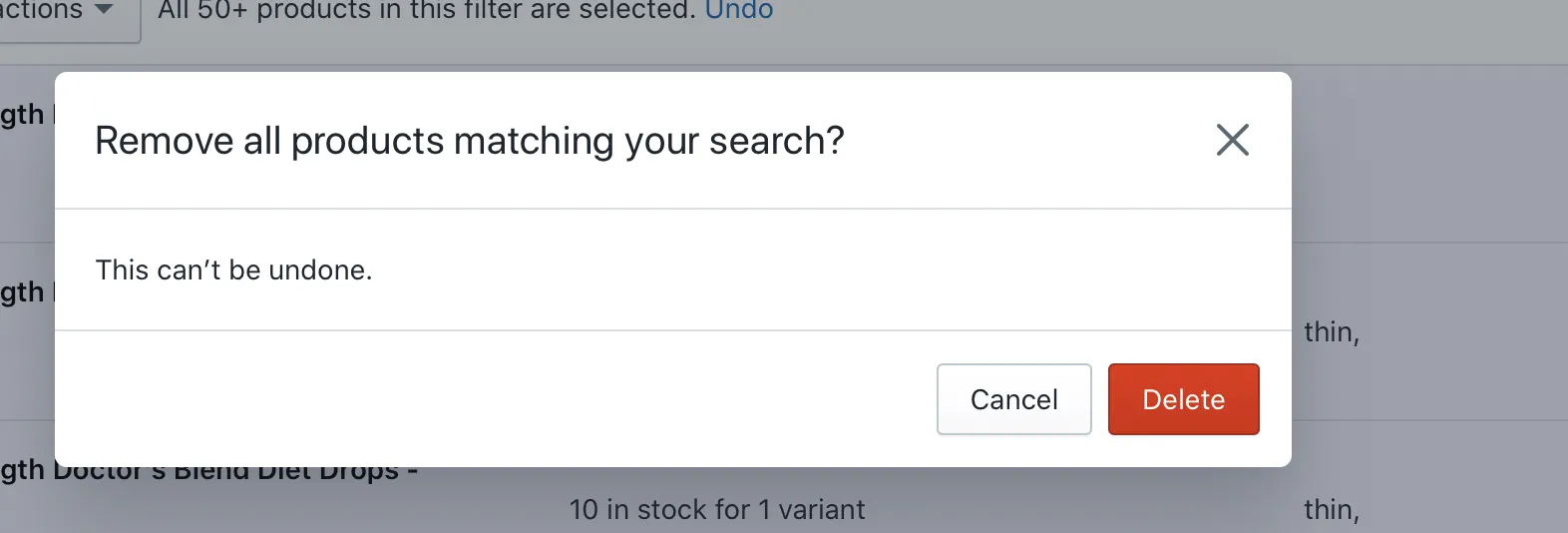
That’s all. Please be cautious and extra careful when deleting products. This is not a reversible action.
Need help?
Email us at help@hextom.com and we’re happy to assist!