
Bulk Product Edit
How to Add Option Values/Variants to My Products
There are three ways to add variant option values/variants to your products using the Bulk Product Edit app:
- Add a Single Variant
- Add a Variant Option Value (Add Multiple Variants)
- Clone Variants and Options from a Selected Product
You can bulk edit your variant option values by selecting Variants and Options from the list of features on the app’s dashboard or by going to the Bulk Edit page.
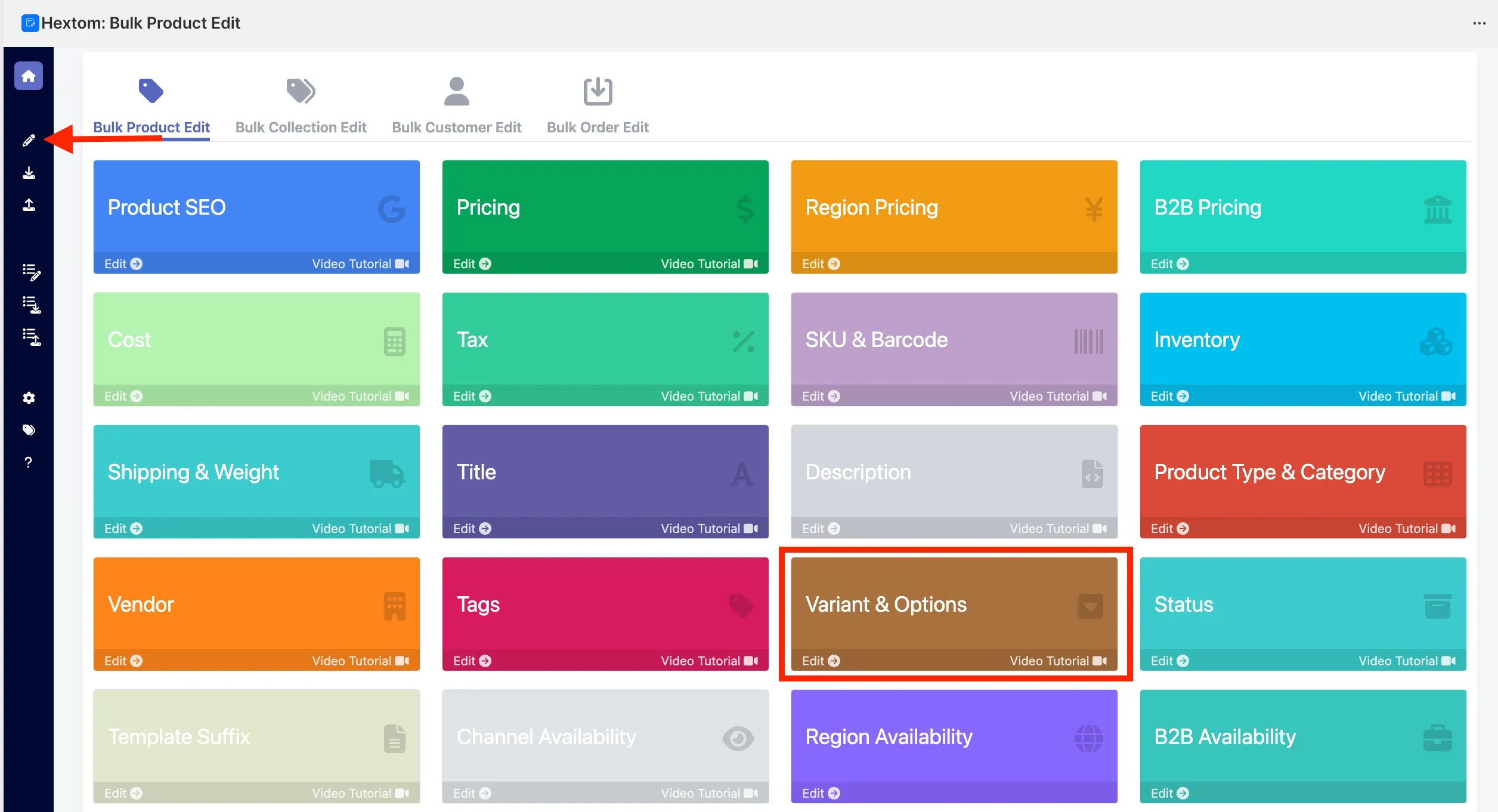
Add a Single Variant
This feature is used to add a new variant based on an existing variant (a variant means a specific combination of variant option values).
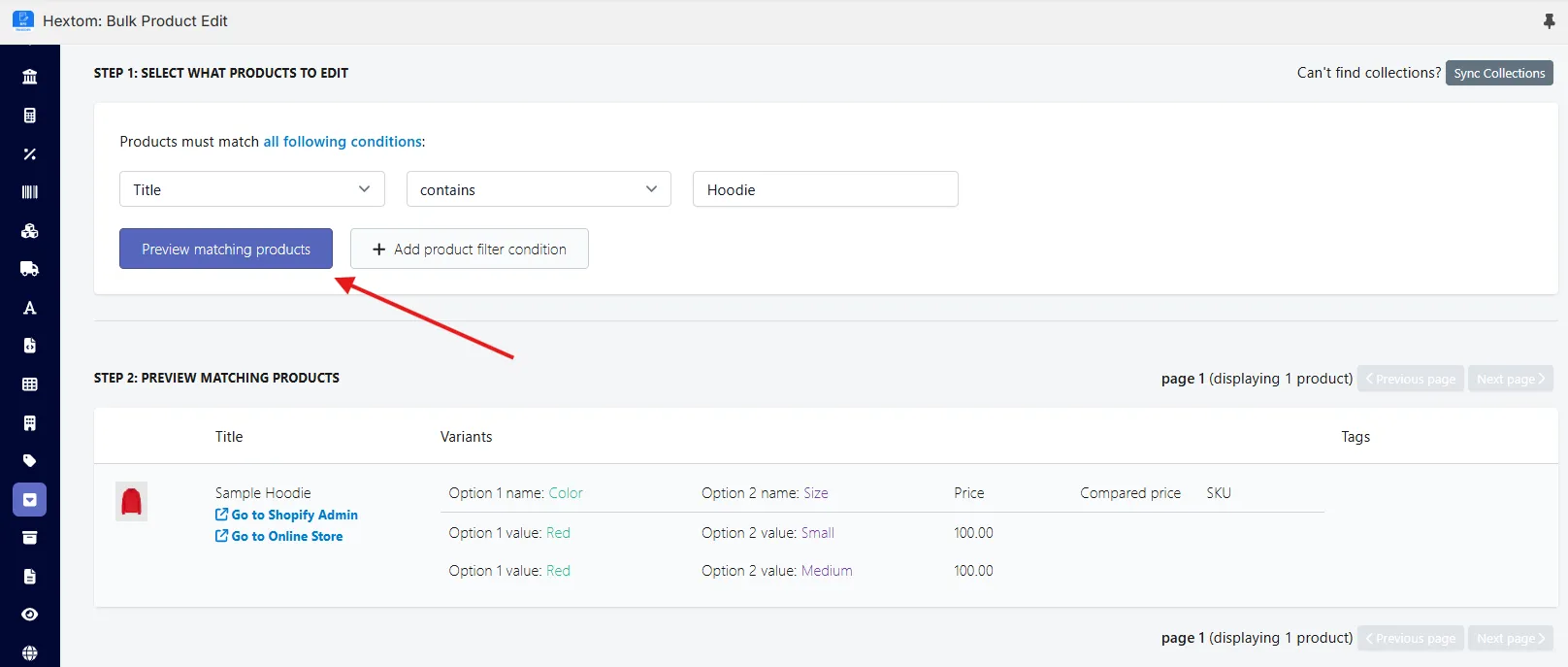
- Set the condition for the product filter to select the products you want to edit and add a variant. You can filter by collections, product ID, product title, and more. Click the button Preview Matching Products to see which products match your filter. In this example, we’ll select products that contain “shirt” in the title.
- Select Add a Variant in the bulk edit options, then enter the new variant option value, and specify the existing variant option value it should be based on.
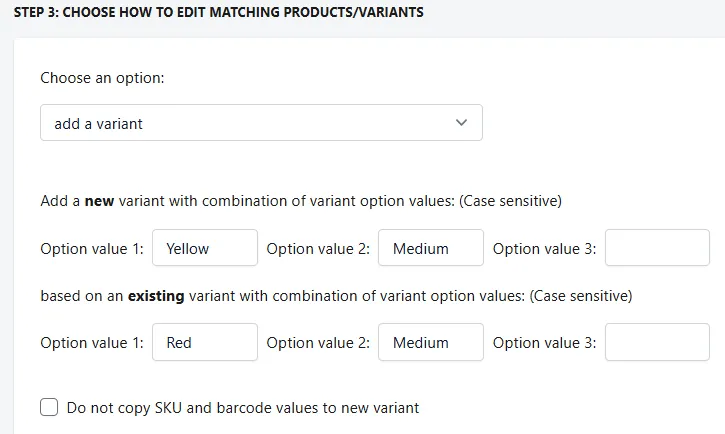
In this example, we have a hoodie available in Color: Red and Sizes: Small & Medium. Now, we want to add a new variant with Color: Yellow, but specifically for Size: Medium. We will enter:
Add a variant (a specific combination of variant option values)
Option value 1: Yellow
Option value 2: Medium
Based on existing variant (case sensitive):
Option value 1: Red
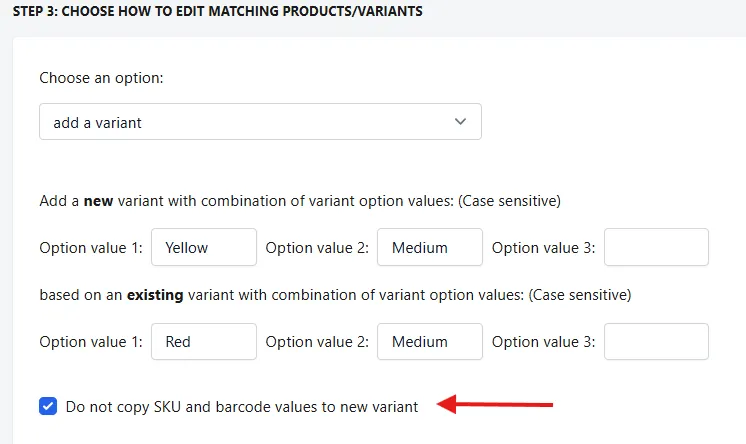
Option value 2: Medium 3. If you don’t want the SKU and barcode values copied to the new variants, you can select the Do not copy SKU and barcode values to new variants option.
- Afterwards, we can review all the information and click the Start Bulk Editing button to begin adding the new variant, then wait for the task to finish.
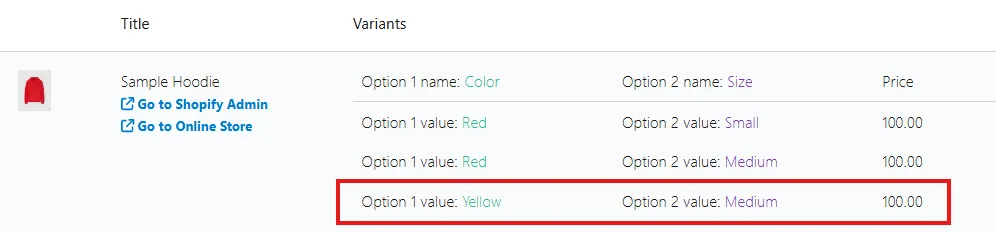
Once the task is finished, we can see that the new Variant Color: Yellow Size: Medium, has been added to the Sample Hoodie product, along with the same attributes from the base variant (price, compare-at price, weight, etc.)
Add a Variant Option Value (Add Multiple Variants)
If you want to add a new variant option value, this feature allows you to do so and will automatically generate every variant combination for you.
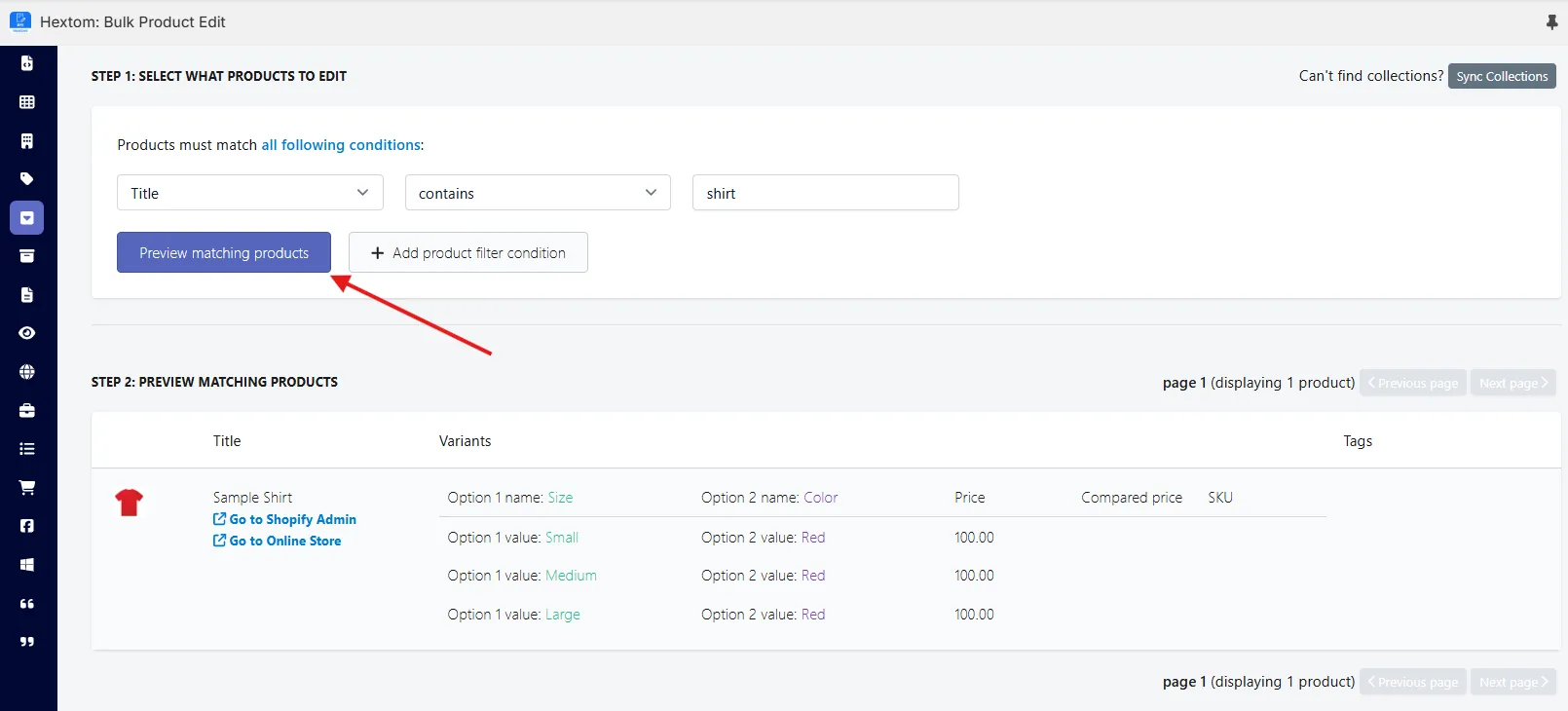
- Set the condition for the product filter to select the products you want to edit and add a variant. You can filter by collections, product ID, product title, and more. Click the button Preview Matching Products to see which products match your filter. In this example, we’ll select products that contain “shirt” in the title.
- Select Add a Variant Option Value (Add Multiple Variants) in the bulk edit options, then enter the new variant option value, and specify the existing variant option value it should be based on.
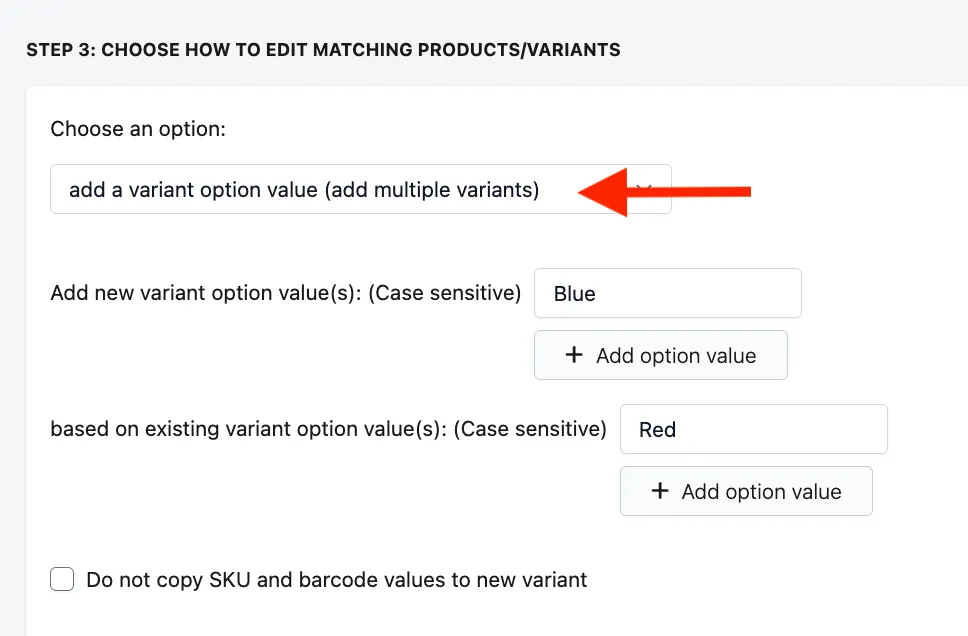
In this example, we have t-shirts available in Small, Medium, and Large sizes, and one color: Red. Now, we want to add the color Blue. To do this, we will enter:
New Variant Option Value: (Case-sensitive) Blue
Based on Existing Variant Option Value: (Case-sensitive) Red
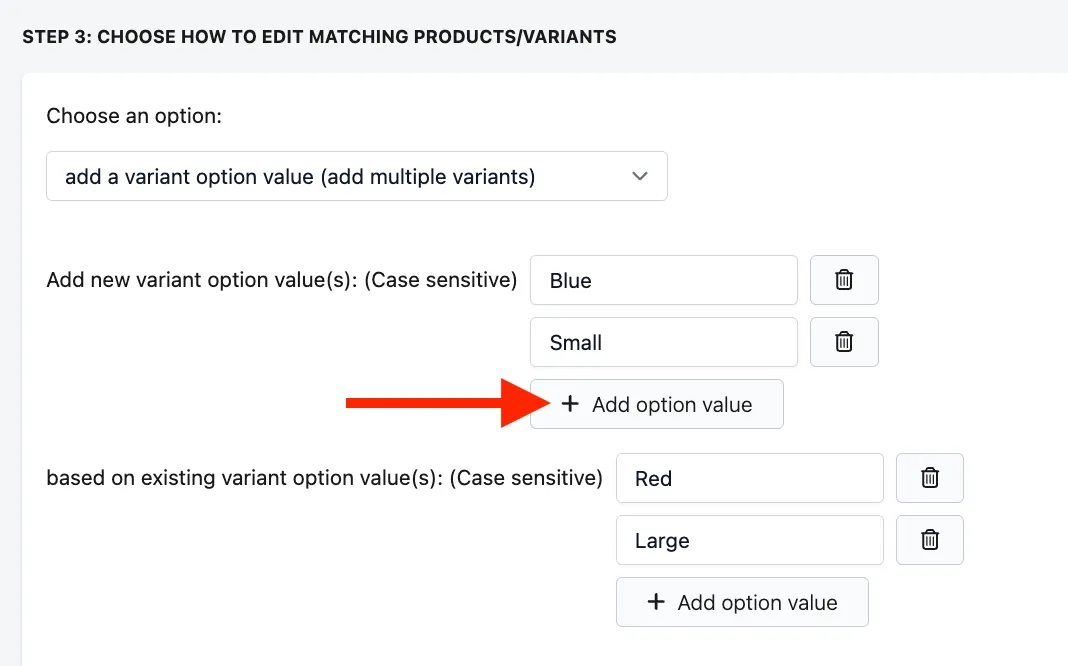
- Optional: You can create multiple variant option values by clicking the Add option value button. For example, you could add Blue and Small based on the existing option values Red and Large. Just make sure you provide the same number of options for both the new variants and the existing/base variants.
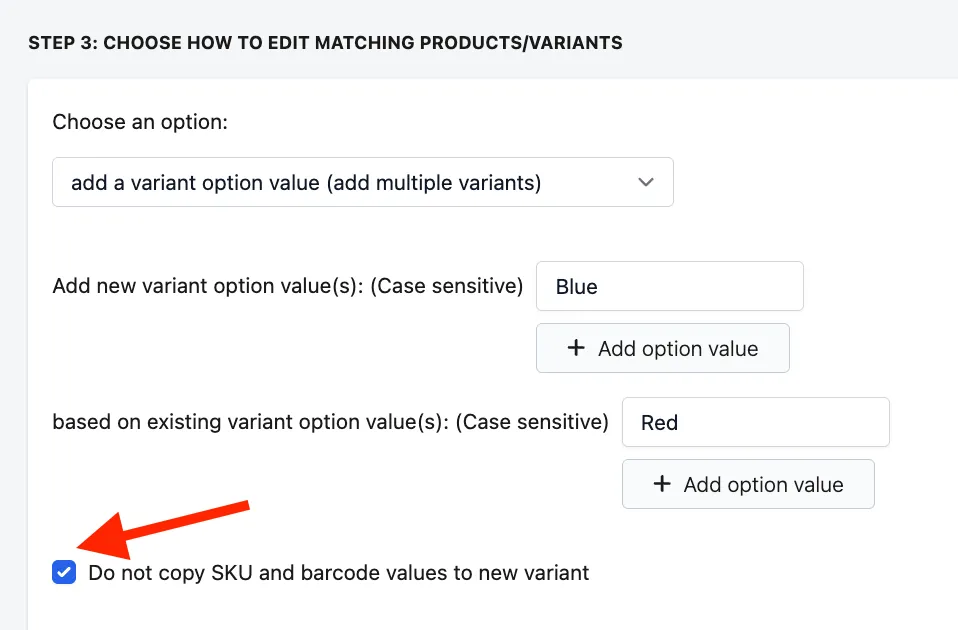
- If you don’t want the SKU and barcode values copied to the new variants, you can select the Do not copy SKU and barcode values to new variants option.
- Afterwards, we can review all the information and click the Start Bulk Editing button to begin adding the variants, then wait for the task to finish.
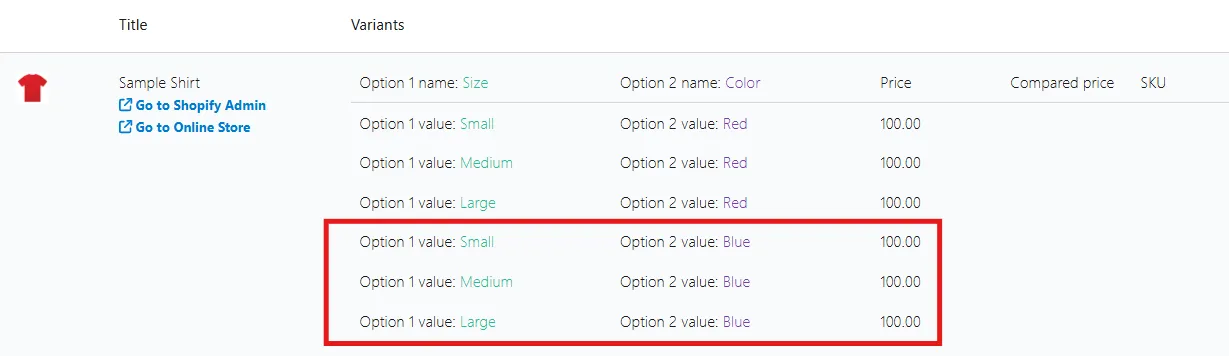
Once the task is finished, we can see the new Variant Option Value: Blue has been added to the Sample Shirt product, including the same attributes from the selected existing variant option value that it was based on (Red), such as price, compare-at price, and weight.
We also provide a brief video tutorial on how to add variants:
Please reach out to us at help@hextom.com if you have any questions about this topic, or anything else!